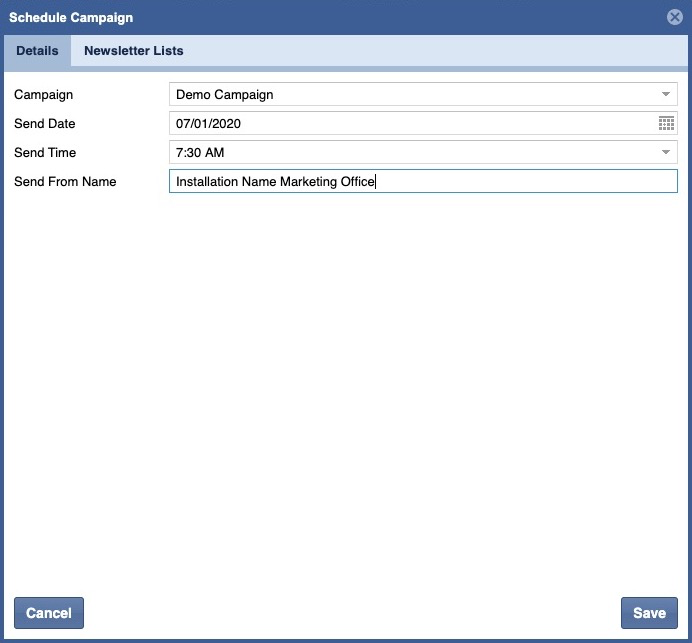
Create a Schedule Campaign Queue.
Click the Create icon.

Select a Campaign from the Dropdown list
Select a Send Date and Time from the pickers.
GMT Time
The Send Time is in GMT time. Click here for what GMT time is currently where you are.
Enter a Send From Name.
Use Generic Name
Please make this name generic, such as "INSTALLATION NAME Marketing Office."
Click the Newsletter Lists Tab.
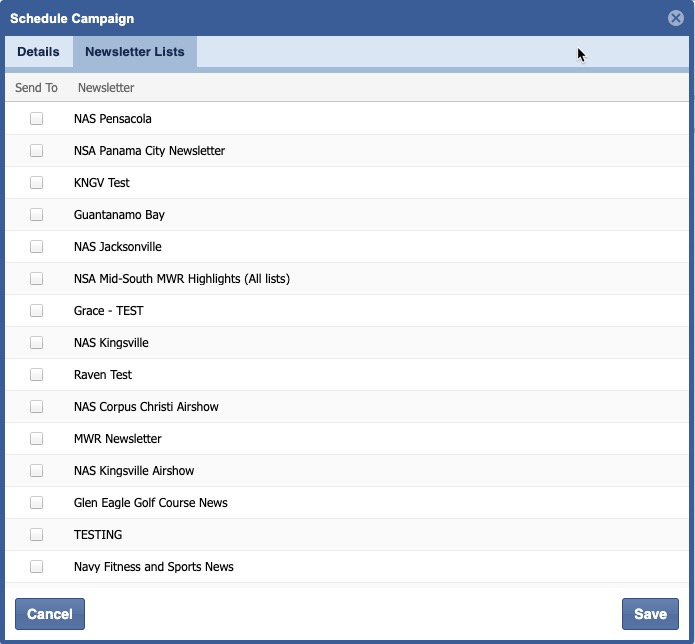
Select a Newsletter to Send To, click Save.
IMPORTANT
- ALWAYS send a test to yourself before you send it to the entire list.
- Send a test to your NMCI and to a non-NMCI email.
- Check ALL hyperlinks in the newsletter before you send to the entire list.
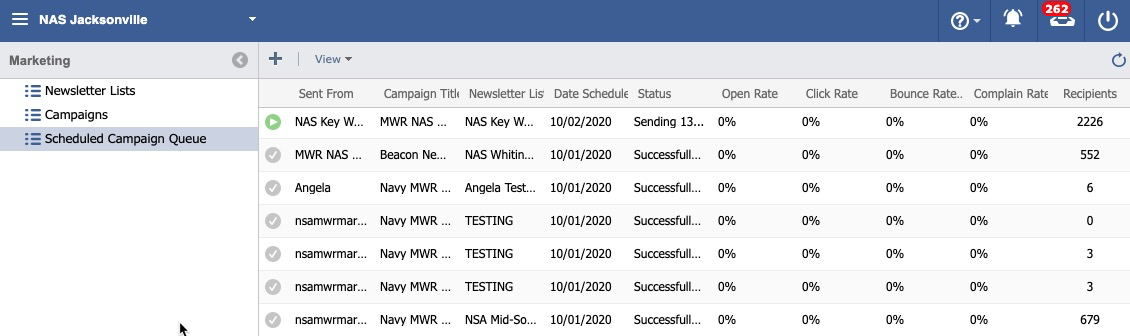
You will then see the Campaign in the pending status until it is sent. It will turn to a gray circle with a successfully sent status when sent.
Campaign Statistics
Statistics will begin to populate after customers begin opening the Newsletter. There are columns for Open Rate, Click Rate, Bounce Rate, and Recipients.
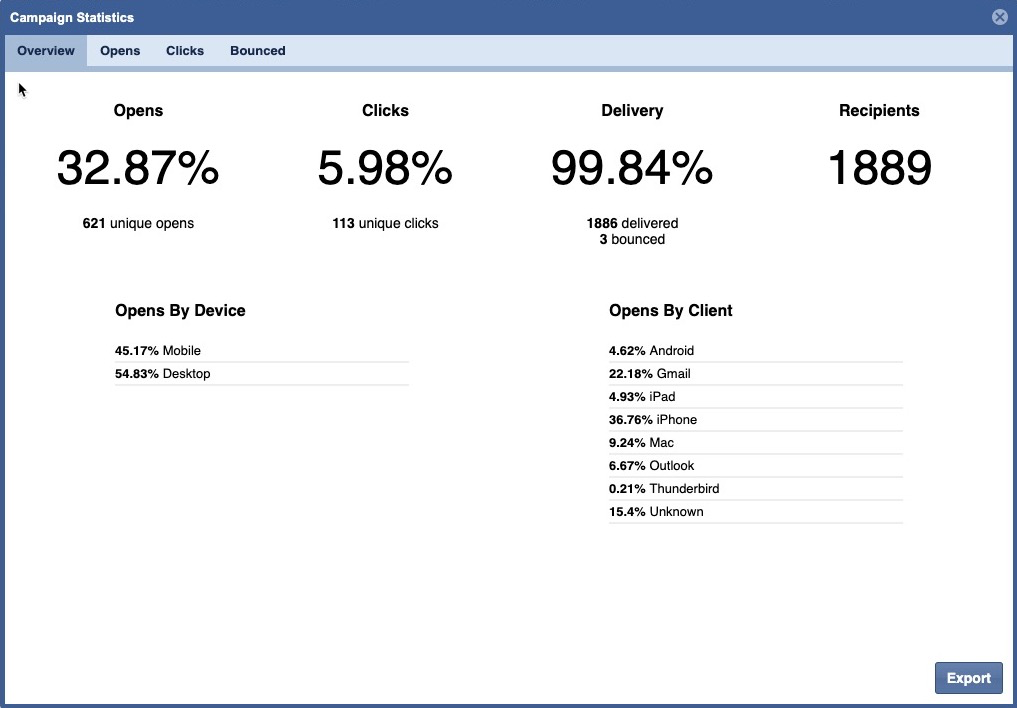
Tab: Overview
- Opens= Percentage of "Open" responses from the receiving email ISP/client.
- Clicks= Percentage of unique clicks.
- Delivery= Delivered %.
- Recipients = Email sent off from the Experience Manager environment.
- Delivered = An "Open" response from the receiving email ISP/client was returned.
- Bounced= A session that triggers only a single request to the Analytics server, such as when a user opens a single page on your site and then exits without triggering any other requests to the Analytics server during that session.
Tab: Opens
Listing of all unique open responses and the UTC times.
Filters
The Filtered by dropdown list shows how many clicks each hyperlink received.
Tab: Clicks
Listing of all unique click responses, the associated link and the UTC times.
Tab: Bounced
Listing of all bounces, their type, sub-type, diagnostic code and UTC time.
Export Statistics
Double click the campaign line item.
This will open up the Campaign Statistics.
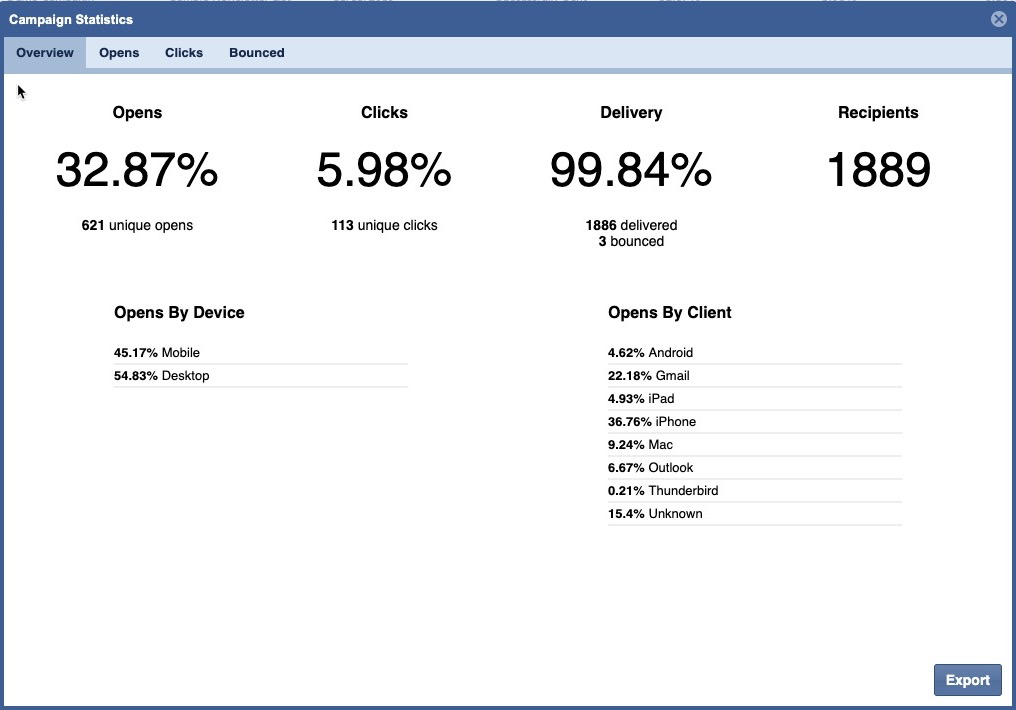
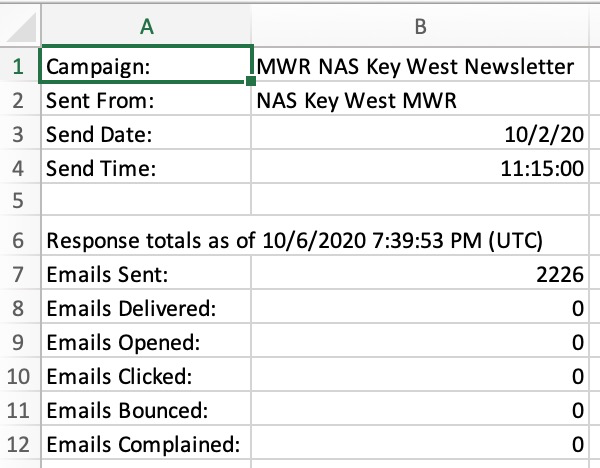
Click Export.

The download will export the details to Excel.
Delete a Scheduled Campaign Queue.
IMPORTANT
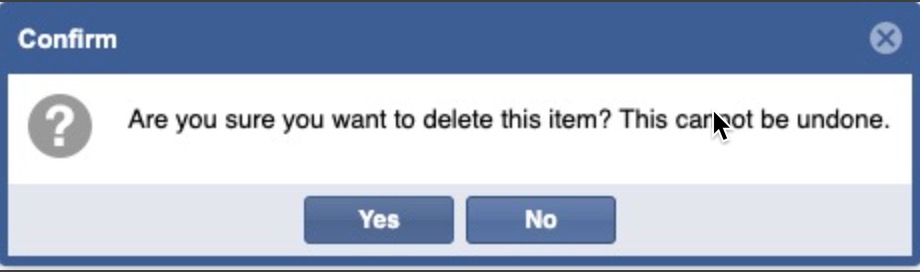
There is nothing to prevent users from deleting Successfully Sent campaigns. If users click Yes, the campaign will be deleted.
Double click a line item.
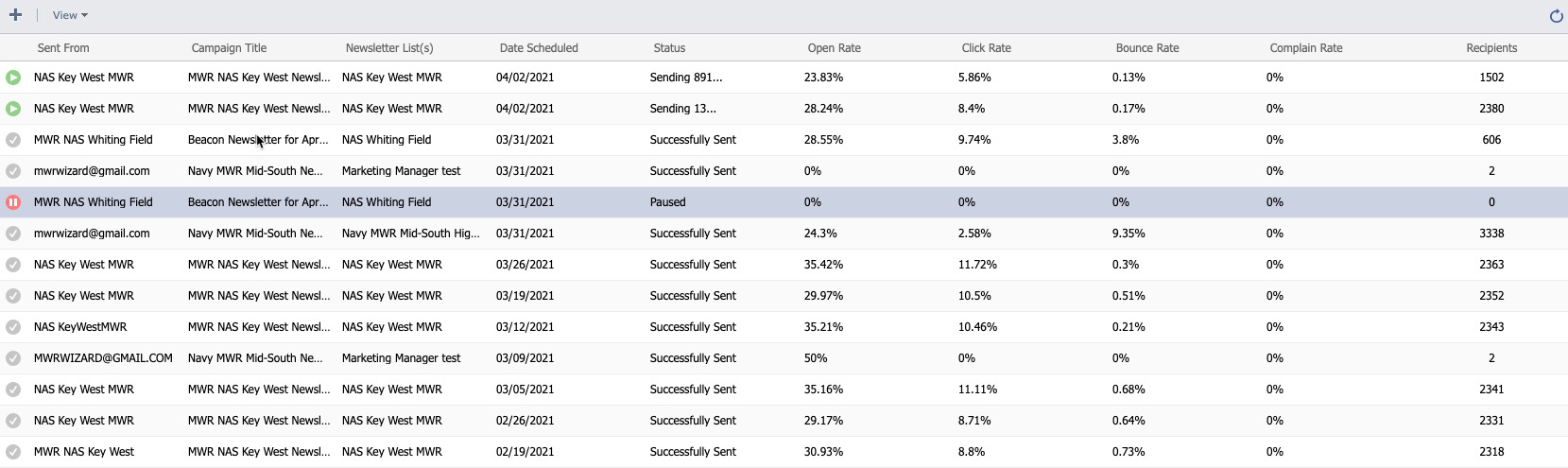
Click Yes.