The site page layout will determine if pages may incorporate blueprints. If allowed, content contributors can choose how to display and organize blueprints, along with configuring their elements.
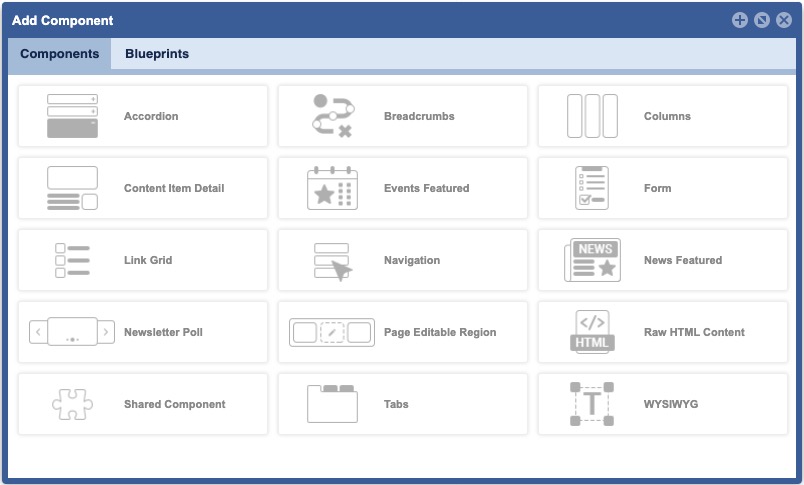
TO ACCESS Site Planner:
launch the application
from global navigation
select Site Planner
- select a Site Page
- Click Add/Configure icons
Activity Detail
Displays Activity details, this is not a summary or list view. This will display detailed information about an Activity.
Formats:
| Blueprint | Description |
|---|---|
| activitydetail.activitydetail | Displays all Activity Details |
When to Use:
- Provides detailed information about an Activity.
Activity List
Formats:
| Blueprints | Description |
|---|---|
| activity.event_list | Displays all events associated to the Groups and Activity Categories and Sub-Categories selected. |
| activity.featured_events | Filters event lists to ONLY display "Featured" events. |
When to Use:
- Inserts Activities, Trip and Class related data in a predefined format and style.
Featured Event List
Formats:
| Blueprints | Description |
|---|---|
| None at this time |
Activity Occurrence Detail
Formats:
| Blueprints | Description |
|---|---|
| None at this time |
Announcement Detail
Formats:
| Blueprints | Description |
|---|---|
| None at this time |
Announcements
Formats:
| Blueprints | Description |
|---|---|
| announcement.alert | Designed to pop up an announcement, if any exist on the page with this blueprint. |
Document List
FAQ
Formats:
| Blueprints | Description |
|---|---|
| faq.accordion | Displays an accordion with questions as title and answers within the accordion body. |
When to Use:
Used when a condensed list is need within a page.
Featured News
Formats:
| Blueprints | Description |
|---|---|
When to Use:
Media Collection
Formats:
| Blueprints | Description |
|---|---|
| announcement.alert |
When to Use:
gallerymediaitem.resources
gallerymediaitem.simple_list
Media Gallery
When to Use:
gallerymediaitem.carousel
gallerymediaitem.gallery
gallerymediaitem.slider_-_four_up
gallerymediaitem.small_carousel
Global Content
Global Content Detail
Job Detail
When to Use:
job.job_detail
Job List and Search
When to Use:
Link List
When to Use:
linklistlink.four_wide
Location Detail
When to Use:
programdetail.location_detail
ProgramDetail.location_hero_banner
Location List
When to Use:
Program.accordion_
Program.description_list
Program.facility_list
program.landing_page
program.tab_layoutProgram.tabs_horizontal
Program.tabs_vertical
News List
When to Use:
news.news_list
news.ticker
News Detail
When to Use:
news.news_detail
Search Results
When to Use:
searchresultset.search_results
Site Pages
Site Planner
When to Use:
navitem.main_navigation
Custom Blueprints
When to Use:
jsondata.activity
jsondata.anchor_sub-navigation
jsondata.blocktitle
jsondata.enterprise_adjsondata.facebook_page_plugin
jsondata.fadecarousel
jsondata.footer_logos
jsondata.google_analytics
jsondata.kings_bay_contstant_contactjsondata.iframe
jsondata.logo_switcher
jsondata.media_video_embedjsondata.mayport_constant_contact_popup
jsondata.n9_ad
jsondata.newsletter_signup
jsondata.pager_default
jsondata.parallax
To easily add a parallax effect behind an element, specifically an image.
jsondata.program_spotlight
jsondata.regionalcarousel
jsondata.slickcarousel
jsondata.social_media_-_white
jsondata.youtube_video_embedjsondata.social_iframe