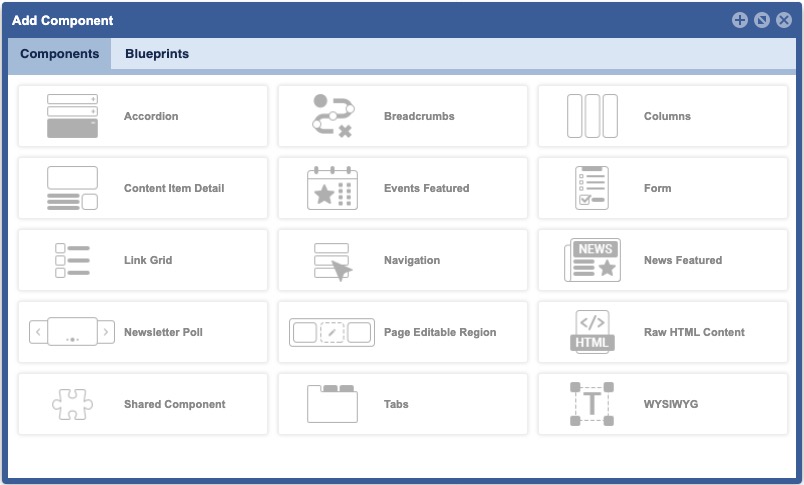
The site page layout will determine if pages may incorporate components. If allowed, content contributors can choose how to display and organize components, along with configuring component elements.
TO ACCESS Site Planner:
launch the application
from global navigation
select Site Planner
- select a Site Page
- Click Component- Add/Configure icons
Accordion
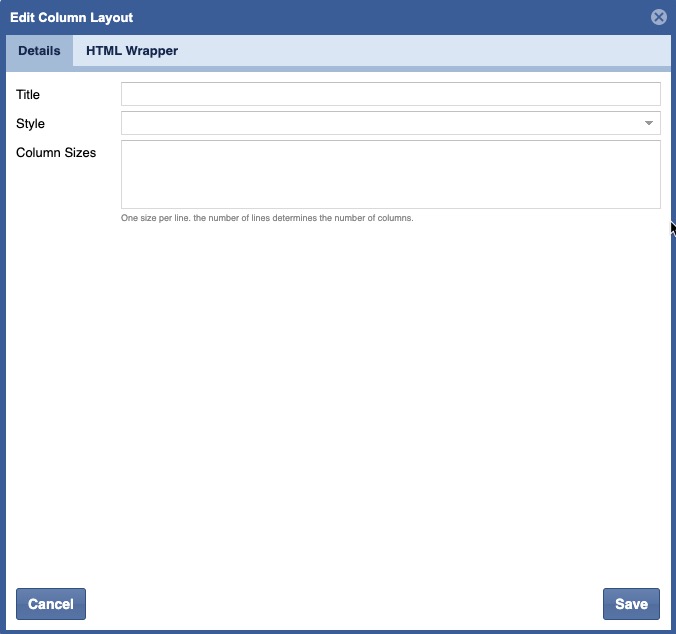
The accordion component delivers large amounts of content in a small space through progressive disclosure. Lowering the chances that users will feel overwhelmed by the abundance of data.The header title acts as a high level overview, while the hidden content provides more detail.
When to Use:
- Organize related information, such as with FAQs.
- Shorten pages and reduce scrolling when content is not crucial to read in full.
Breadcrumbs
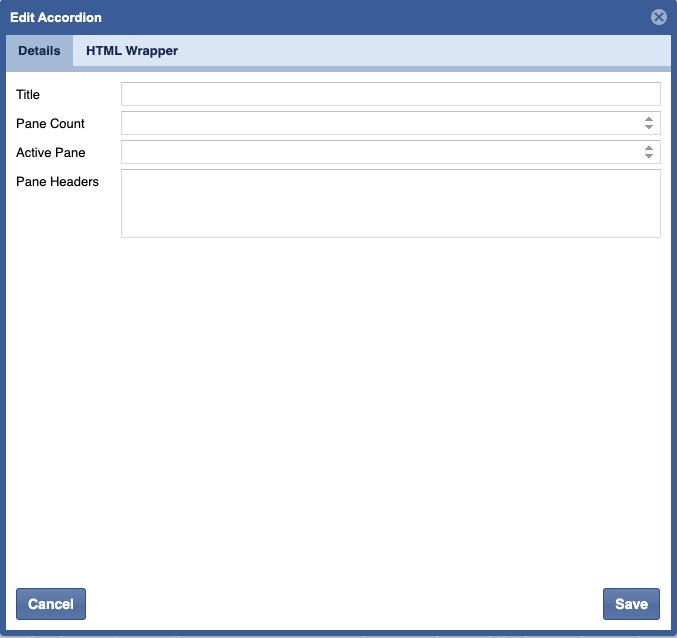
Breadcrumbs display a list of items, which are aligned side by side, orienting the users to a current location. Allowing quick navigation of the hierarchal structure of content of two or more levels.
When to Use:
- Intended as a secondary form of navigation, never a primary.
- Enabling user to quickly move up to a parent level or previous step.
Columns
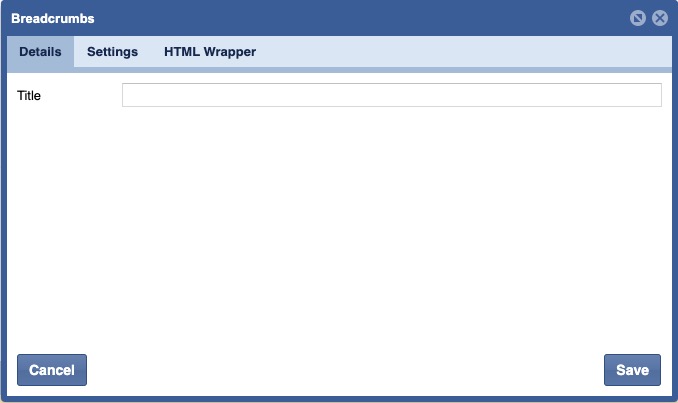
Displays inline content in multiple columns.
When to Use:
- Creates containers for grouped content without having to split into multiple containers.
Content Item Detail
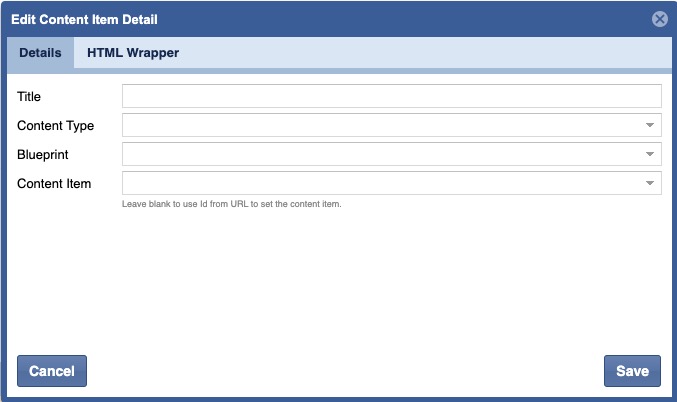
Allows a user to insert a content item detail for a selected content type and blueprint. If a content item is not chosen, the ID in the page URL will be used to find it.
When to Use:
- Use it when you want to show the detail of a content item somewhere in a page other than the default detail page.
Events Featured
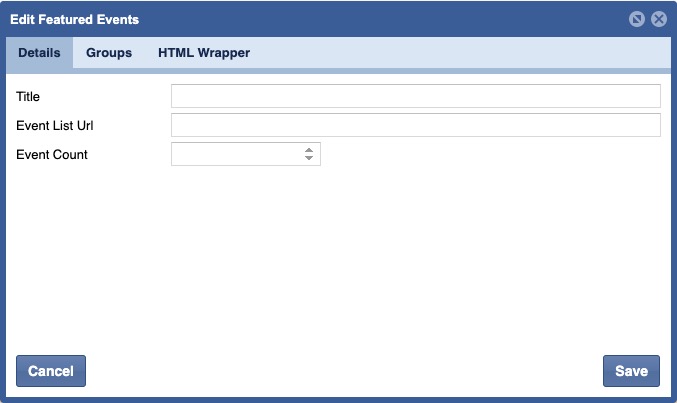
Users can create an event list from Activities that have the flag "Featured" ON. This list can also be restricted to a set display count.
When to Use:
- When promoting featured events.
Forms
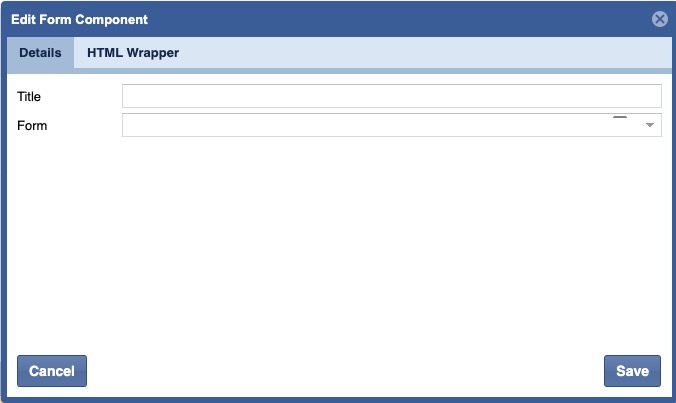
Insert an existing Form into a Page.
When to Use:
- When a form is needed to capture related data.
Link Grid
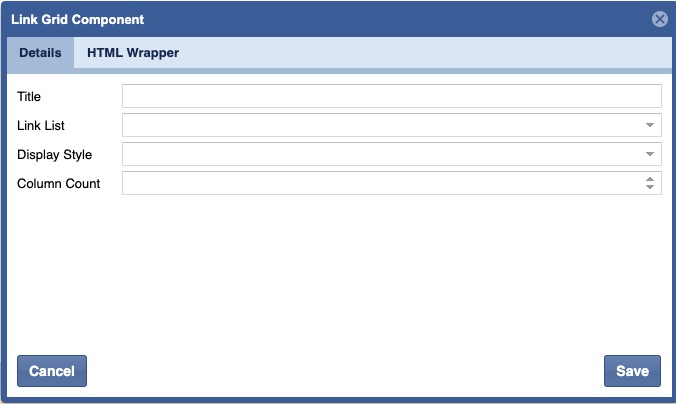
Displays a link list using the blueprint specified for each link.
When to Use:
- Use this to display links in a grid layout.
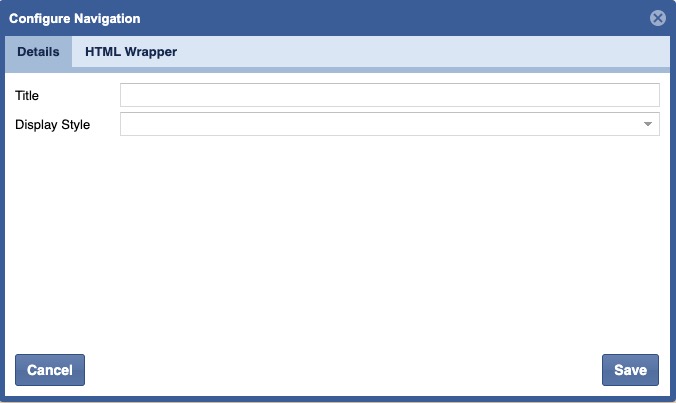
Navigation
Create a navigation bar that can be used for your main site navigation.
When to Use:
- Use where pagination needs to be shown.
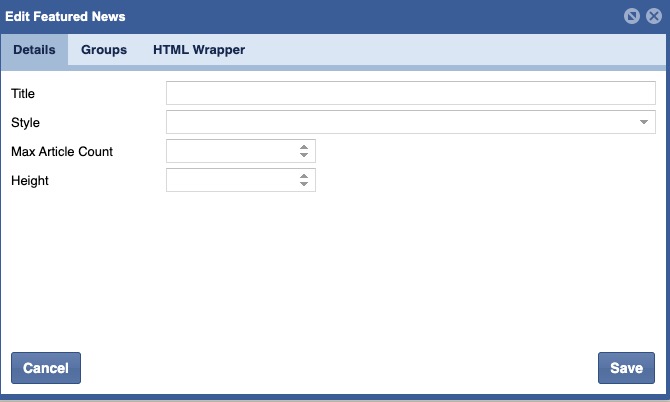
Featured News
Displays News that has been marked as "Featured".
When to Use:
- Use where highlighted News Articles should display.
Newsletter Poll
When to Use:
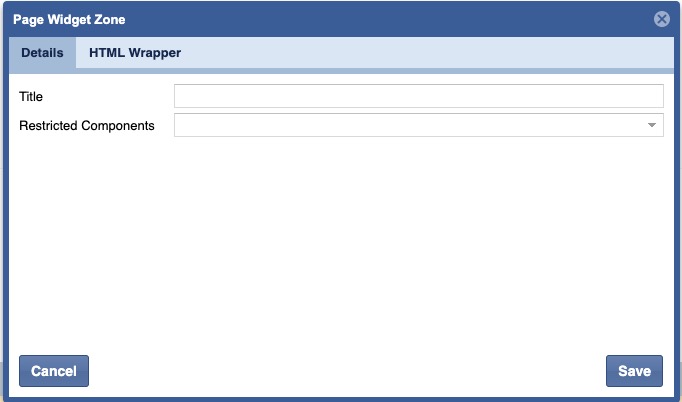
Page Editable Region
Editable regions within a site page control which areas of a template-based page a user can edit. Content editors can choose which components to add within editable areas, and thus adjust the structure of the page.
When to Use:
RAW HTML Content
Insertion of custom HTML content.
When to Use:
Shared Component
When to Use:
Tabs
Tabs organize related content into defined navigational buckets. Each clickable tab contains higher-level content labels and displays lower-level content with each clickable interaction.
When to Use:
- Organize related information, such as with FAQs.
- Shorten pages and reduce scrolling when content is not crucial to read in full.
WYSIWIG
WYSIWYG (What You See Is What You Get) is a rich text editor designed to simplify website content creation.
When to Use:
Use to insert of custom text and elements/objects.Add Component
Within the Site Planner the Content Template associated to the Page Layout will determine the Layout and allowed components.
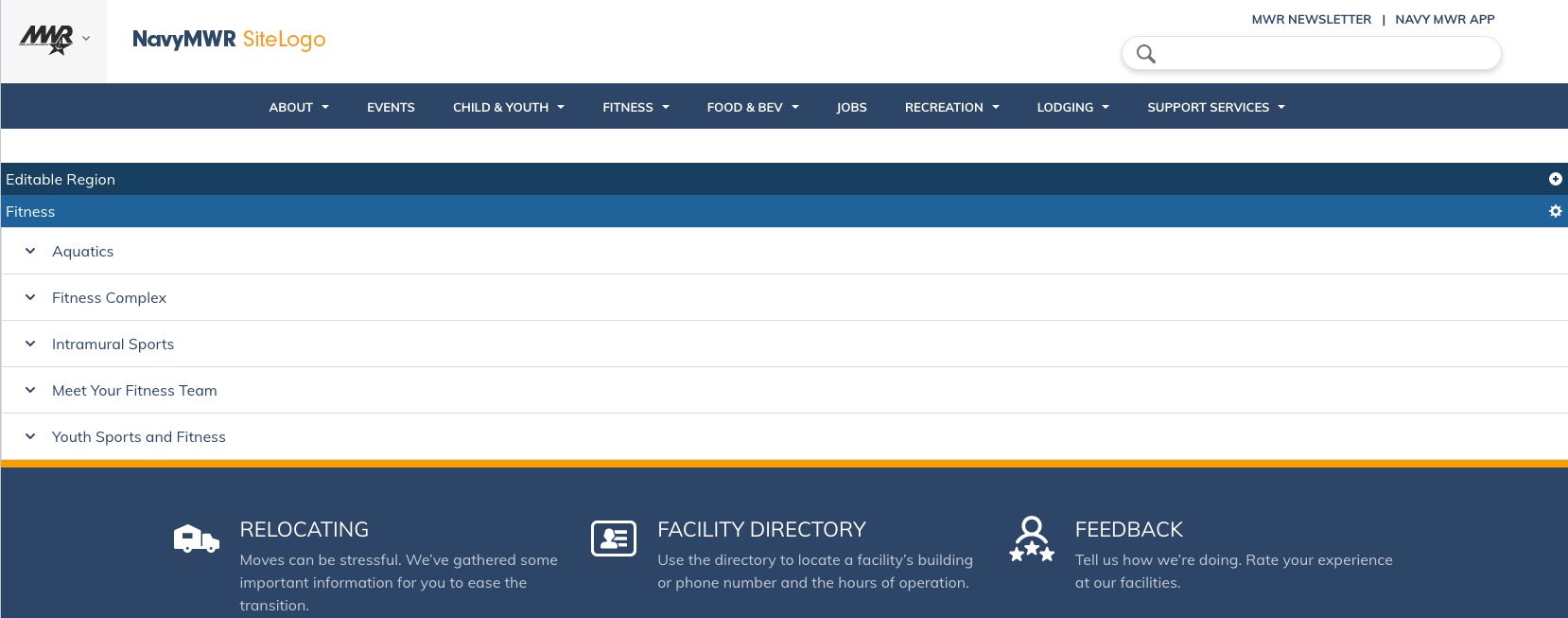
On the Console Tool Bar, Checkout the Page.

Once Checked Out, the icon will update the lock icon.

Within the Main Content, click the Add Content.

A Component selector will display.
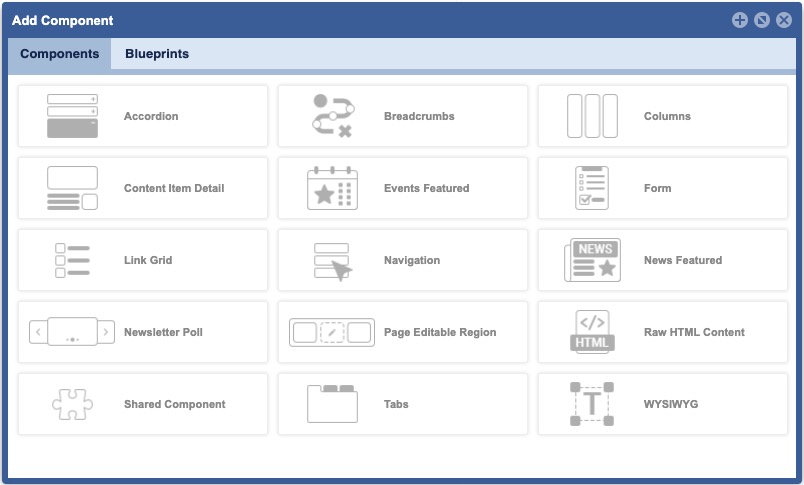
Click the Component.
Configure a Component
When adding a component to a site page each component form will vary based on the component selected. For specific on each component and the form details, see components.
To view and/or configure the Component properties:
From the Site Page, select the Configure icon, in the Main Panel.

Click Configure.
Once complete, click Save.

Clone a Component
To view and/or configure the Component properties:
From the Site Page, select the Configure icon, in the Main Panel.

Click Clone.

The component will clone and display beneath the existing component. To modify the component follow the steps in Configure Components. To move the component, follow the steps outlined in the Move a Component.
Move a Component
To view and/or configure the Component properties:
From the Site Page, select the Configure icon, in the Main Panel.

Click Move To.

Select a Movement Action.
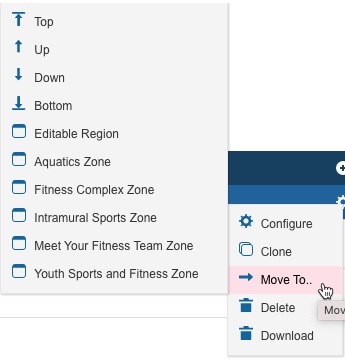
Once selected, the page will refresh and the component will display in its new location.
Delete a Component
To view and/or configure the Component properties:
From the Site Page, select the Configure icon, in the Main Panel.

Click Delete.

A confirmation message will display.
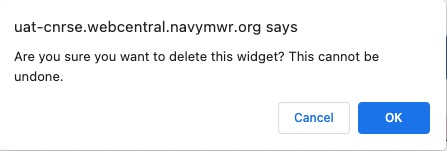
Click OK.
Confirm the component has been removed.