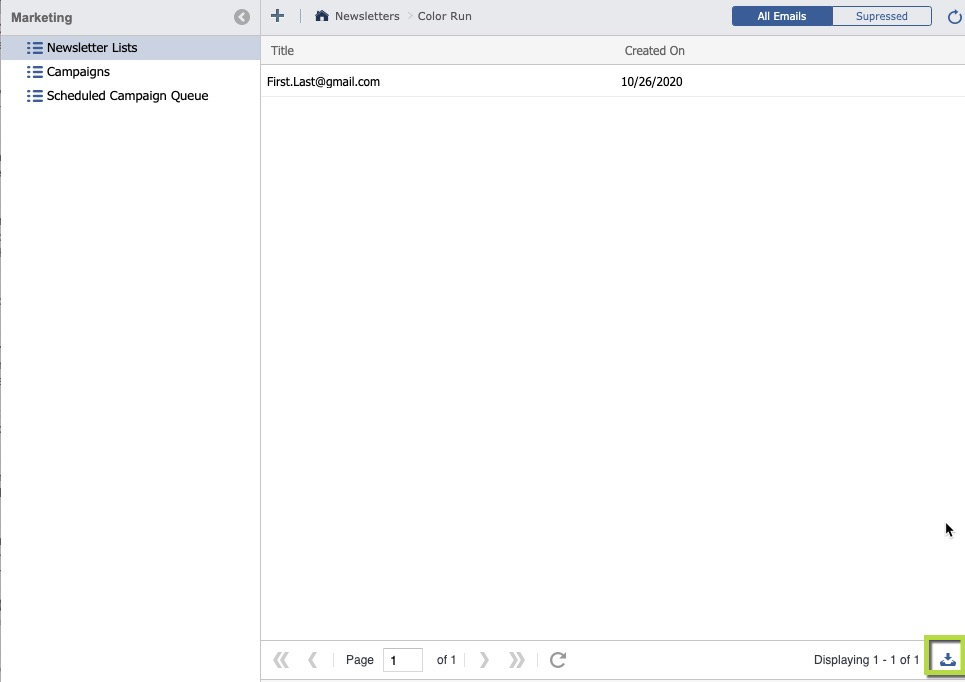
Create Newsletter Lists
Testing Tips
Consider adding a Test Newsletter List to preview before sending out to the customers.
Click the Create icon.

Enter a Title.
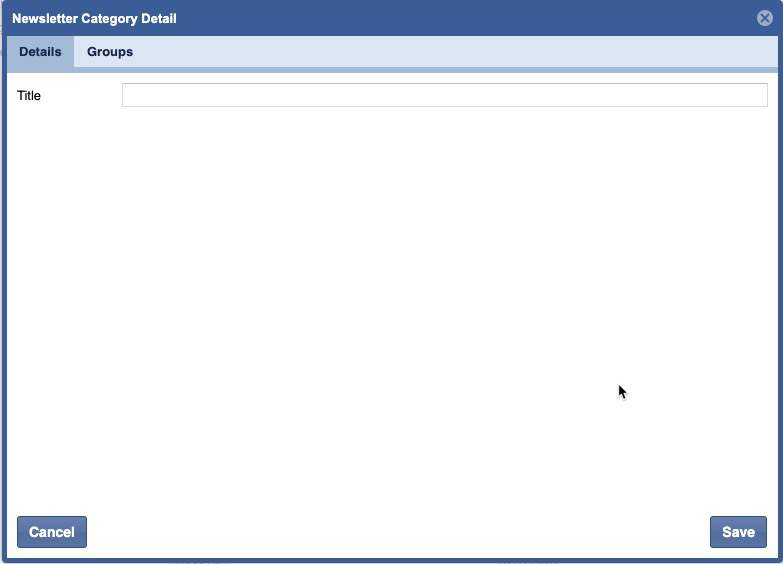
Click Save.

There may be a need to add an email address to the list.
Add Subscribers to the Newsletter
Click the Create icon.
This will open a form.
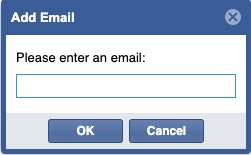
Type an email address, click OK.
The email will appear in the main panel listing.

Modify Newsletter Lists
Newsletter Details
Click the Edit icon.

Modify the Details as needed.
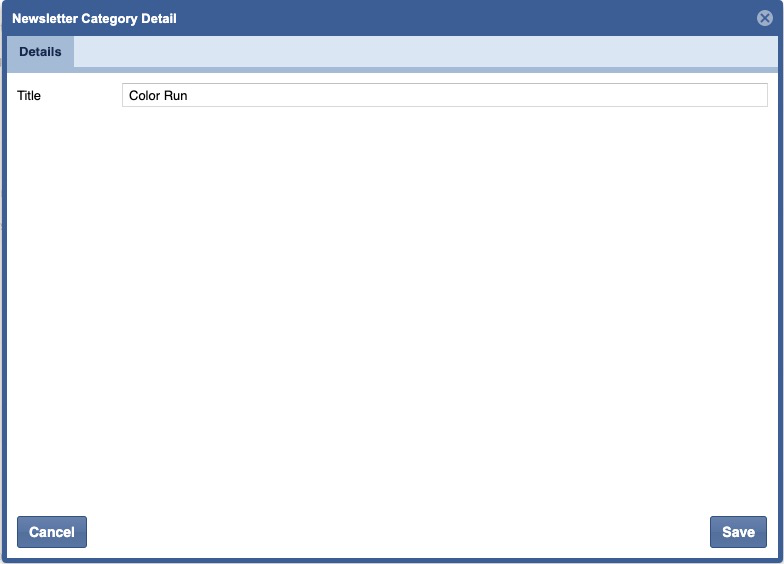
Click Save.
Remove a Subscriber(s).
Click the User icon or double click the line item.

This will open a list of subscribers who signed up through the website or mobile application to receive a newsletter.
It's recommended that you occasionally check the list for duplicate emails or random words.
To delete an entry, click the entry to highlight an email.
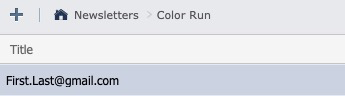
Press the delete button on the keyboard.
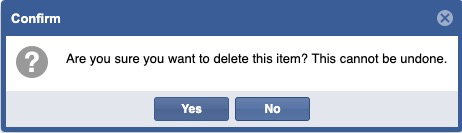
You will need to confirm, click Yes.
Delete Newsletters
Click to Highlight a line item.

Press the delete button on the keyboard.
You will need to confirm, click Yes.
Download Newsletter Subscribers
Click the User icon or double click the line item.
You will be taken to the User list.

The list can be downloaded by choosing the download icon in the bottom right corner of the screen.