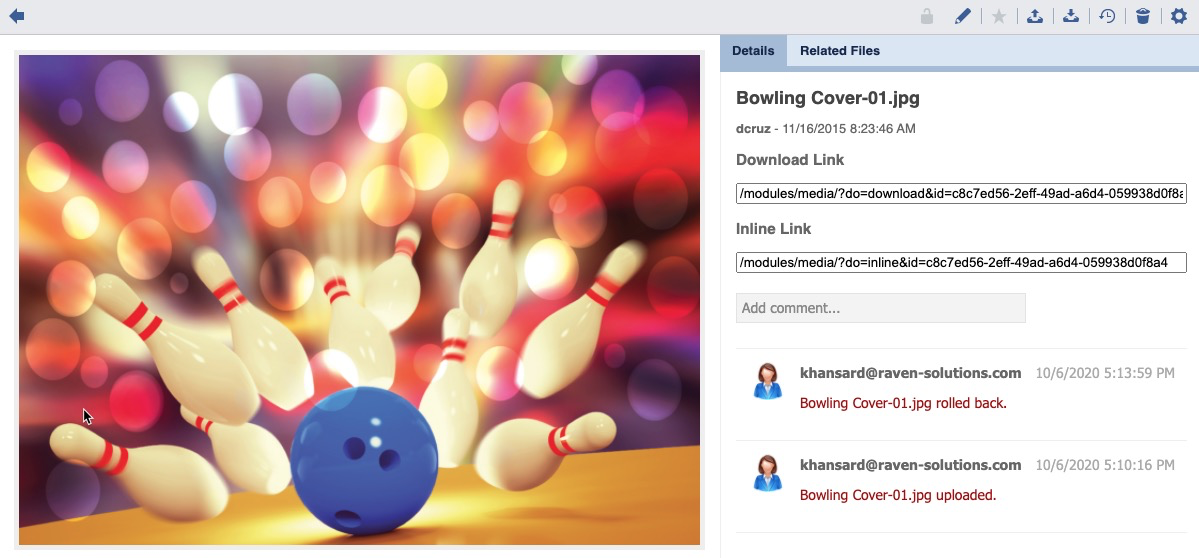
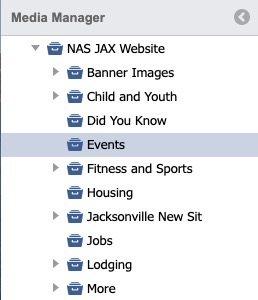
Select a Collection or Gallery.
The default thumbnail view will display.
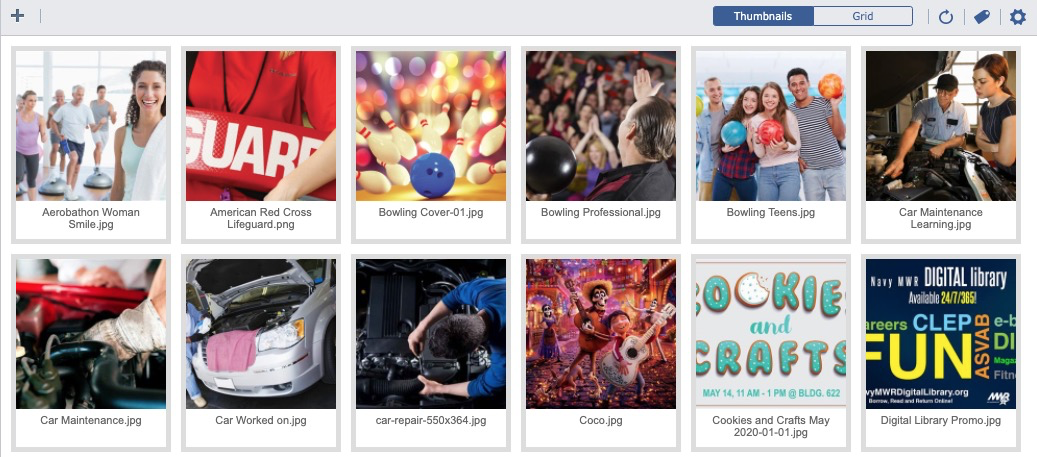
Click on an Image.

The main content panel will update and display the image preview and details.
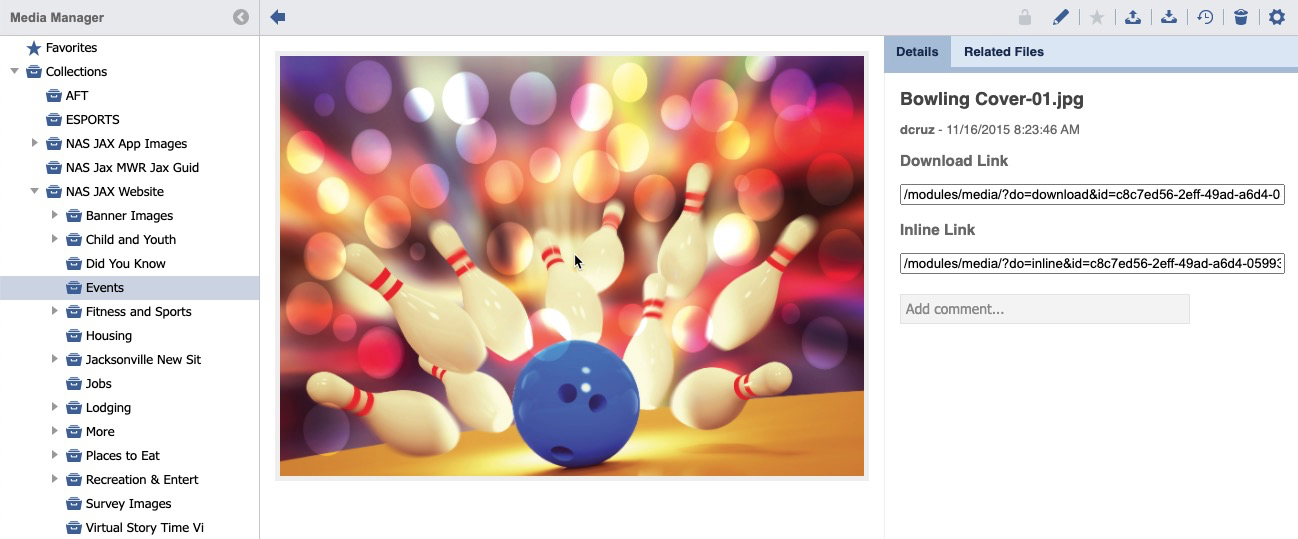
Click the History Icon.

A history listing will display.

Checkmark Icon
 Indicates the current Live version.
Roll Back a Version
Select a Collection or Gallery.
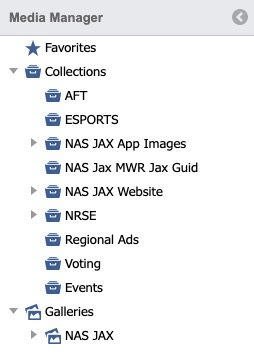
The default thumbnail view will display.
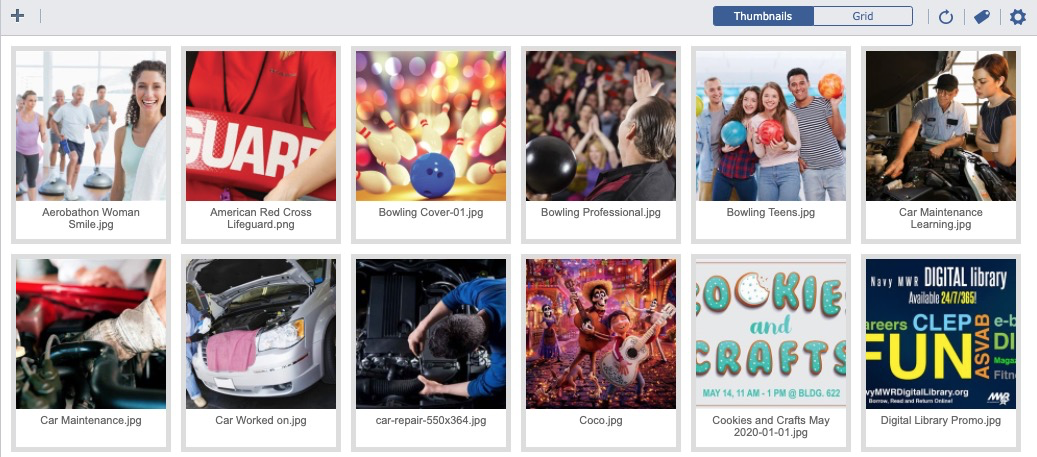
Click on an Image.
The main content panel will update and display the image preview and details.
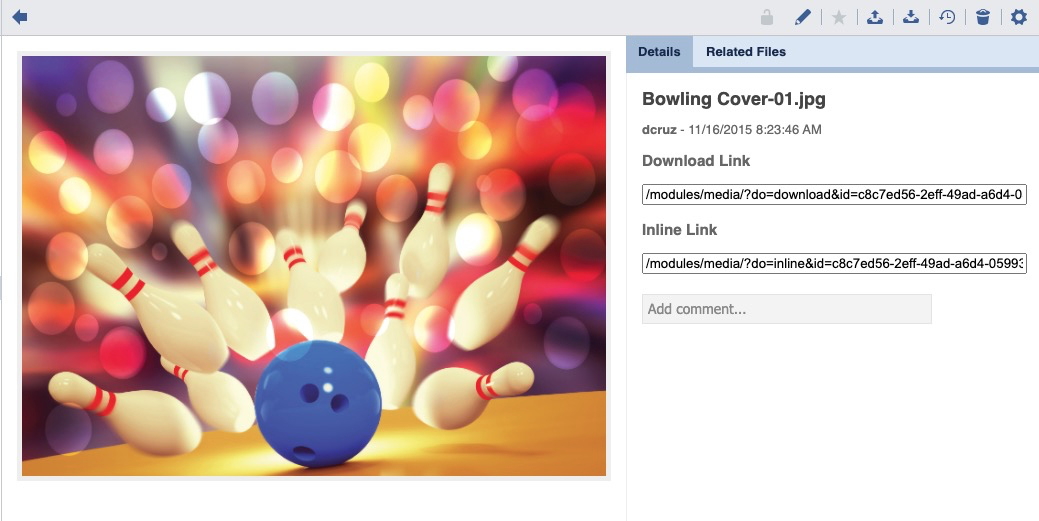
Click the History Icon.

A history listing will display.

Checkmark Icon
 Indicates the current Live version.
Double Click an Image Thumbnail.
An Image Detail will display.
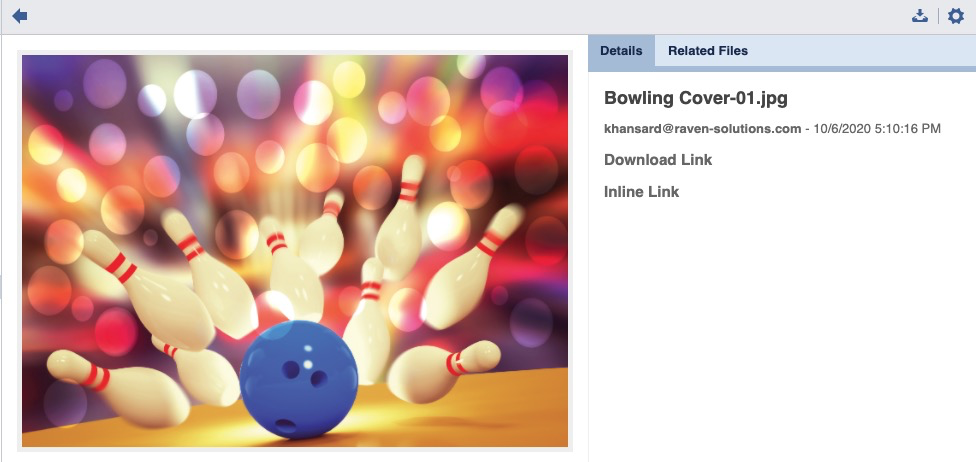
To Download, click the Download icon.

To Return to the History Listing, click the Back icon.

To revert to a previous version, click the Settings icon.

A confirmation message will appear, click Yes.
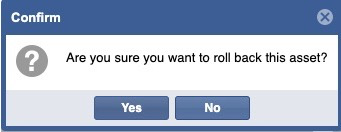
The asset will be restored and a historical comment will post.