Versions Compared

Key

  • This line was added.
  • This line was removed.
  • Formatting was changed.

...

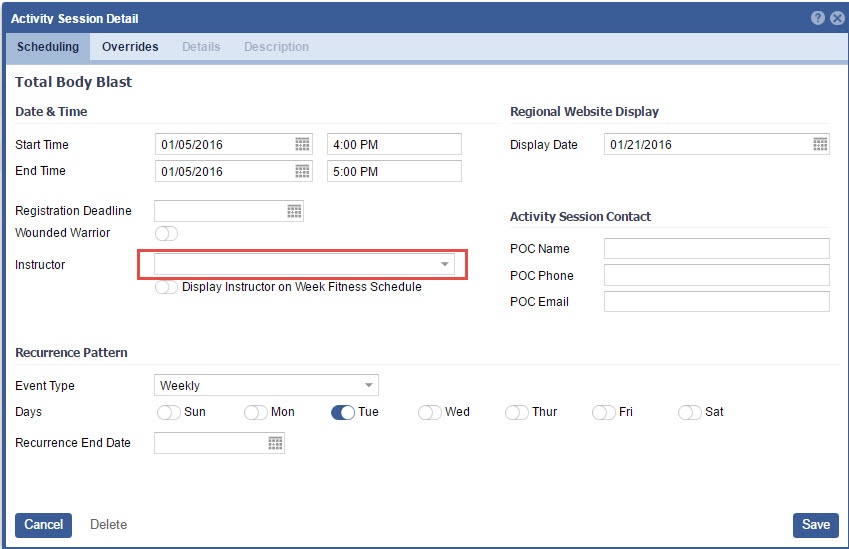
3. Select an Instructor


Note
  • If there are no instructors to choose from, you must first link valid instructors to the Activity Master record. Once linked, they will display in the Activity instance.
  • The "Display Instructors on Week Fitness Schedule" if toggled ON, will populate instructor names on the Week Fitness Schedule.


     4. Set the Registration Deadline

...

Info

On Month View:
Start times will now default to end user's computer time to the nearest 15 minute interval.
End time will be one hour past the Start Time.


Image RemovedImage Added


Note

Please note that under Date & Time the Start and End Time share the same date. This information is just for the first occurrence. You will set the reoccurrence recurrence End date in the "Reoccurrence Recurrence End Date" field.

  1. Select Event Type Monthly
    Image RemovedImage Added

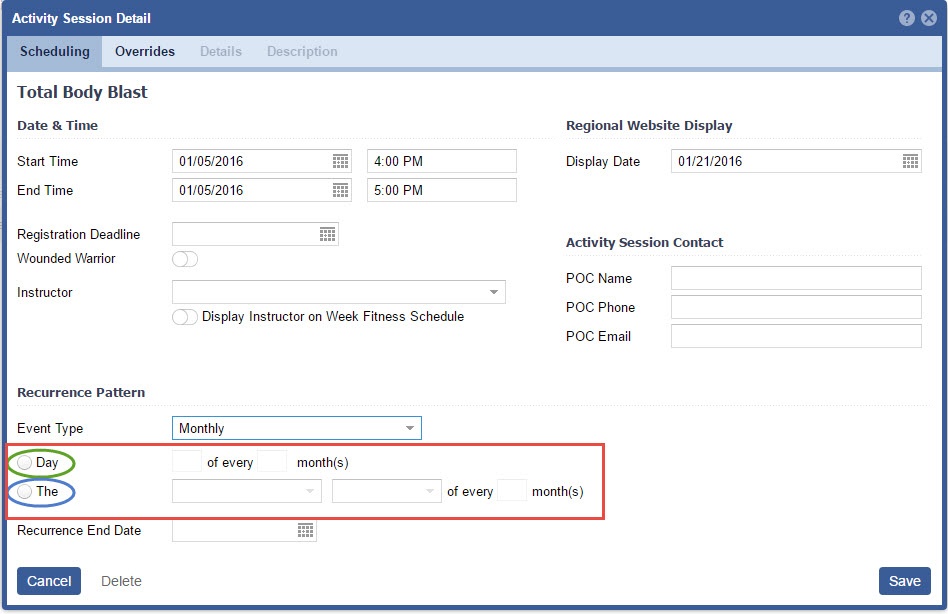
  2. Select the appropriate Pattern
    Image RemovedImage Added
Note

When using Monthly Occurrences you have two options.

  1. You can select a day of the month, then select how often it will occur.
  2. Another option is to set the occurrence for a specific pattern. e.g. The First Saturday of every month.

     3. Set the Reoccurrence Recurrence End Date

Note

This field will be required, if "Generate receipt" is toggled ON, in Activity Categories.

         Image Removed     4. Choose to turn ON the "Display one event at a time", if you only wish to show One Event at a time on the Calendar. Typically, this will default OFF.  Image Added
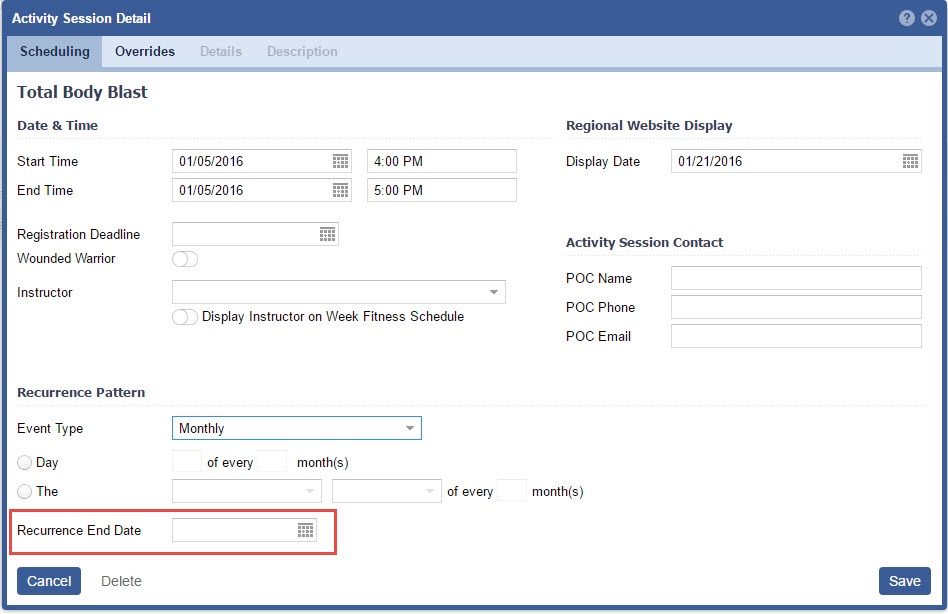
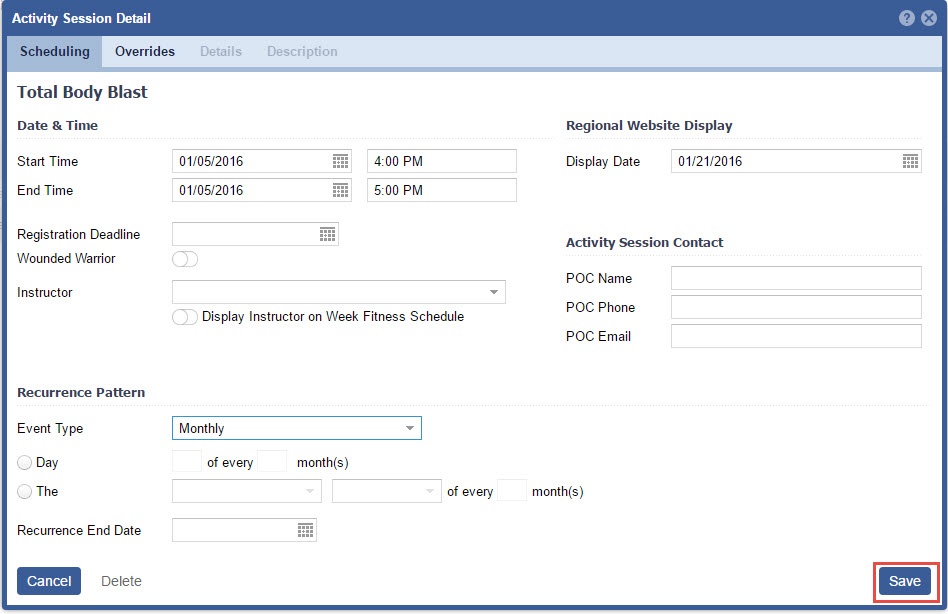
         Image Removed    5. 4. Click "Save"

       Image RemovedImage Added