Page History
...
Activities, Trips and Classes
| Note |
|---|
Note: The following steps are for users that use the Activity, Classes and Trip logic, not those using the Event logic. |
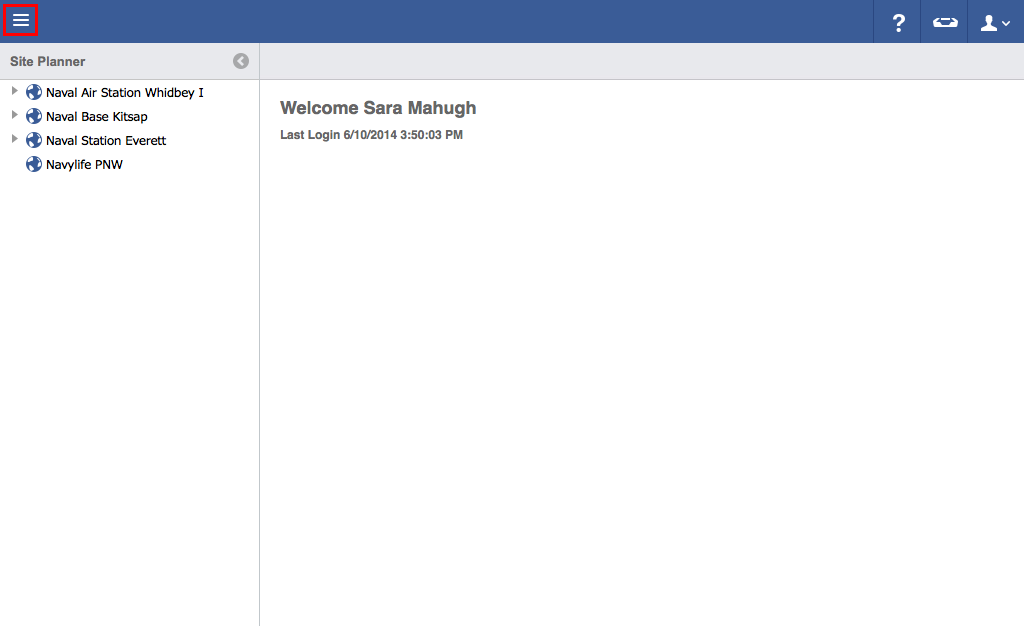
- Click on the menu icon in the top left header area.
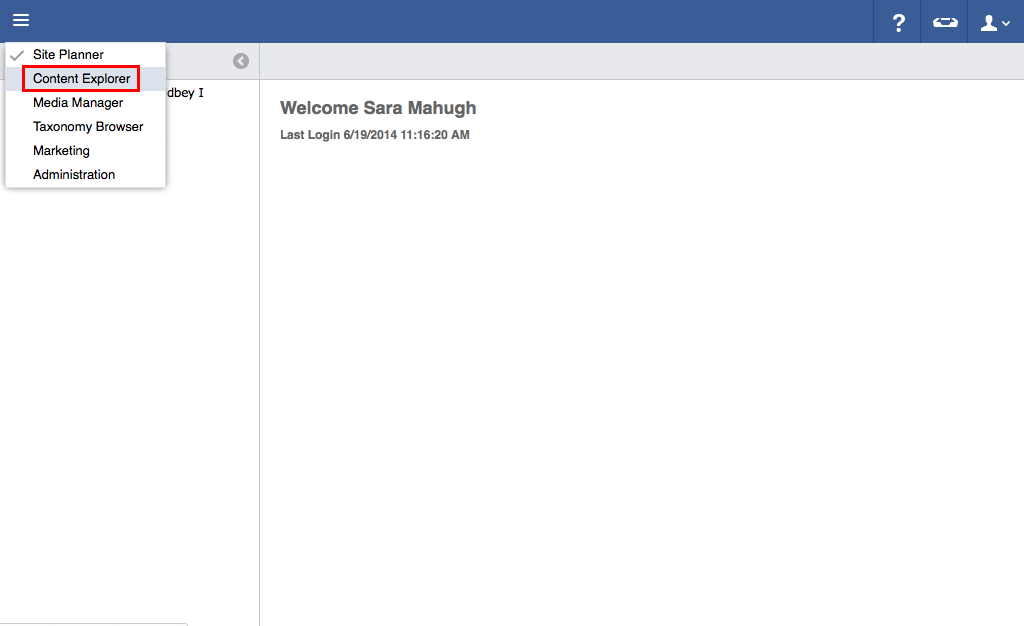
- Click "Content Explorer".
- Click "Activities, Trips and Classes ".
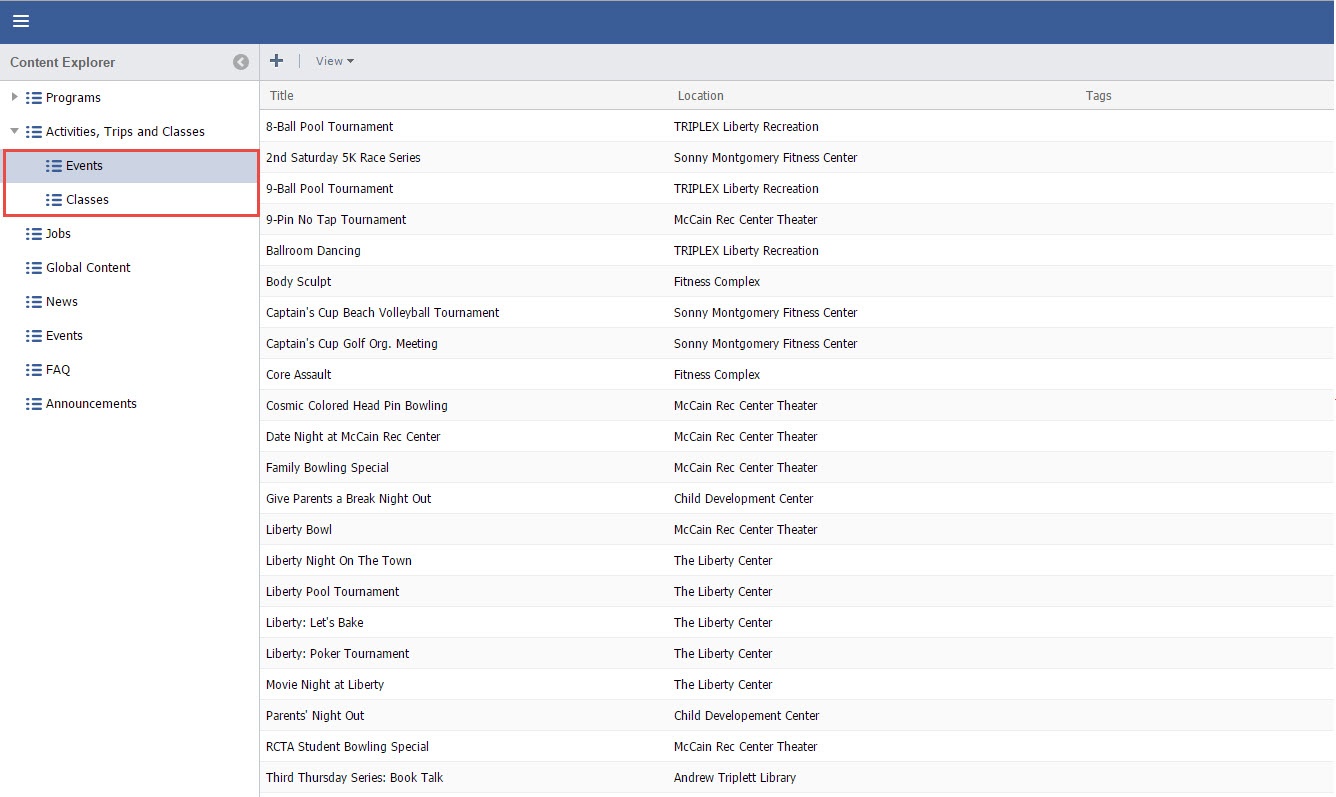
- Click the "Arrow" to expand the sub-menus
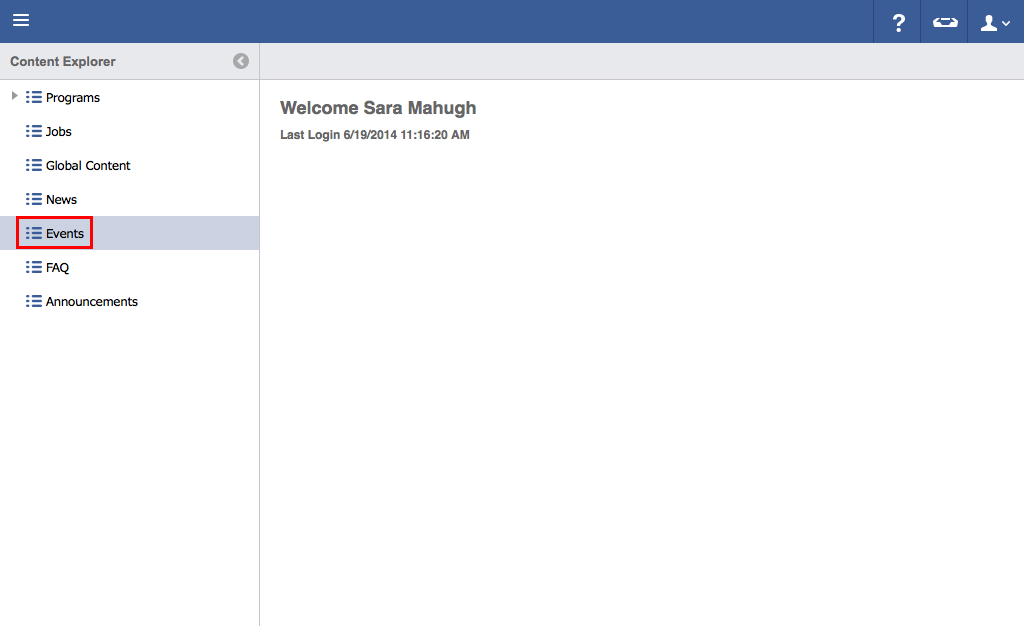
- Select the "Events" or "Classes".

- To update the Parent Event or Class continue with these instructions. To update the child Event or Class, see Child Event
- Select Event or Classes
To update the Parent information Double Click the Event or Class.
- Click Edit

- Edit necessary information.

- Click "Save".

Anchor #childevent #childevent For Child (individual) Event or Class Editing
- To update the Child (Individual) Class or Event, double click on the Parent Class or Event.
- Double Click the individual Class or Event you wish to edit.
 Double click on the information to be edited.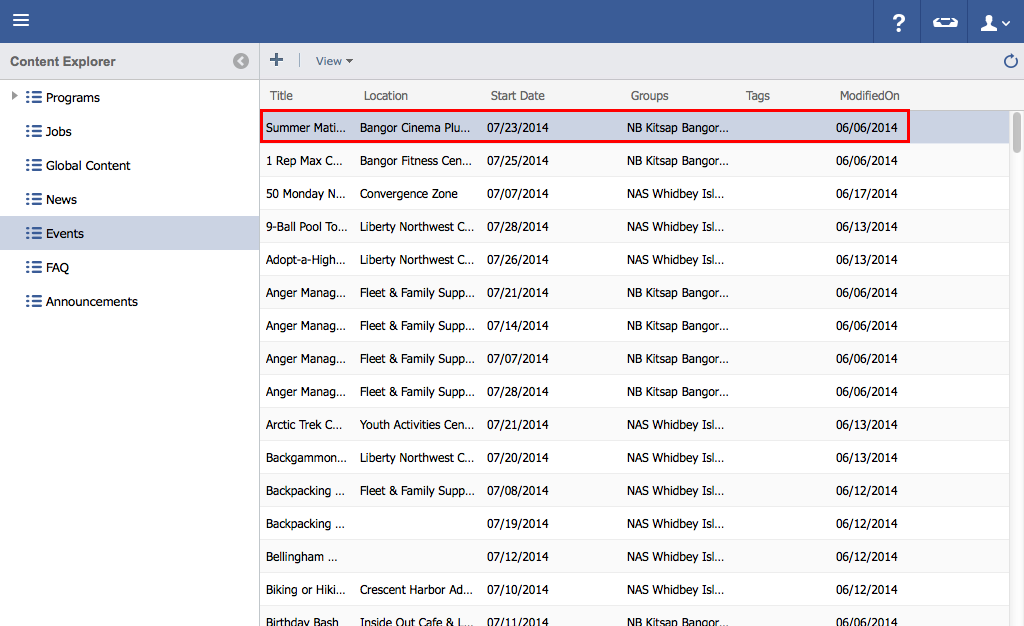
- Edit necessary information.

- Click "Save".
