Page History
| Anchor | ||||
|---|---|---|---|---|
|
Collection Creation
Hover over the container folder
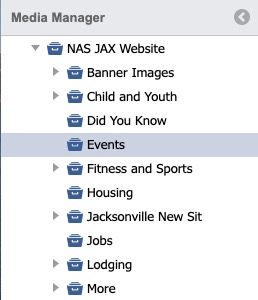
Select the Create Folder icon.


This will bring up the Collection Folder Details.


Tab: Details
On the Folder setup, enter a title and Friendly URL (optional).
- Title
Name of the collection folder
- Friendly URL
Users can enter unique names for all locations. A resource widget will collect and index Friendly URLs and know that and item is a site page, program detail, or event.
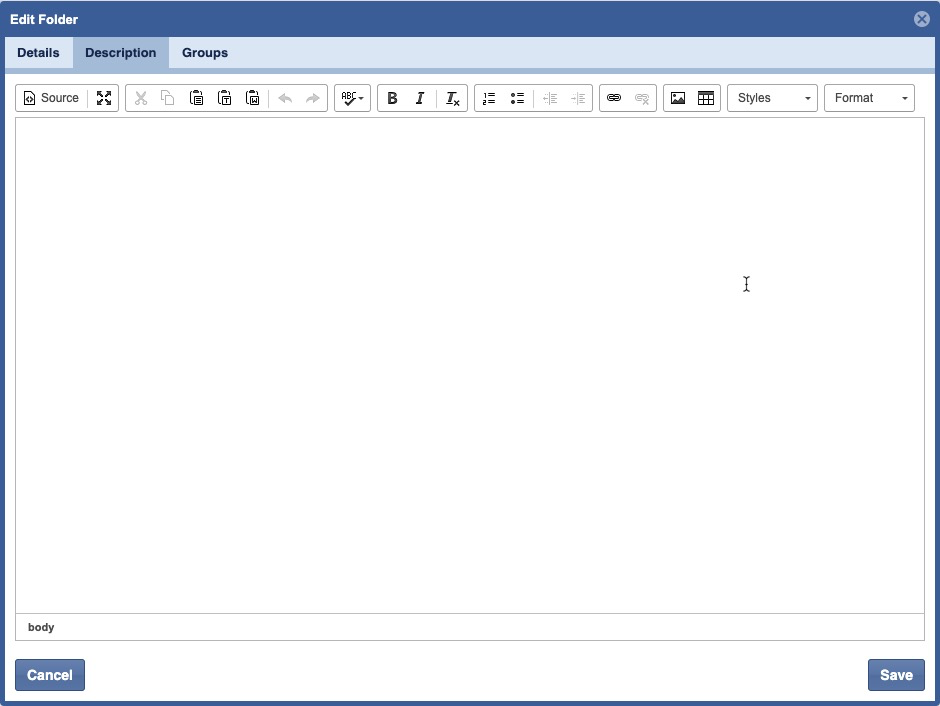
Click Description.
Tab: Description
A Rich Text Editor is provided to allow full control over the Description.
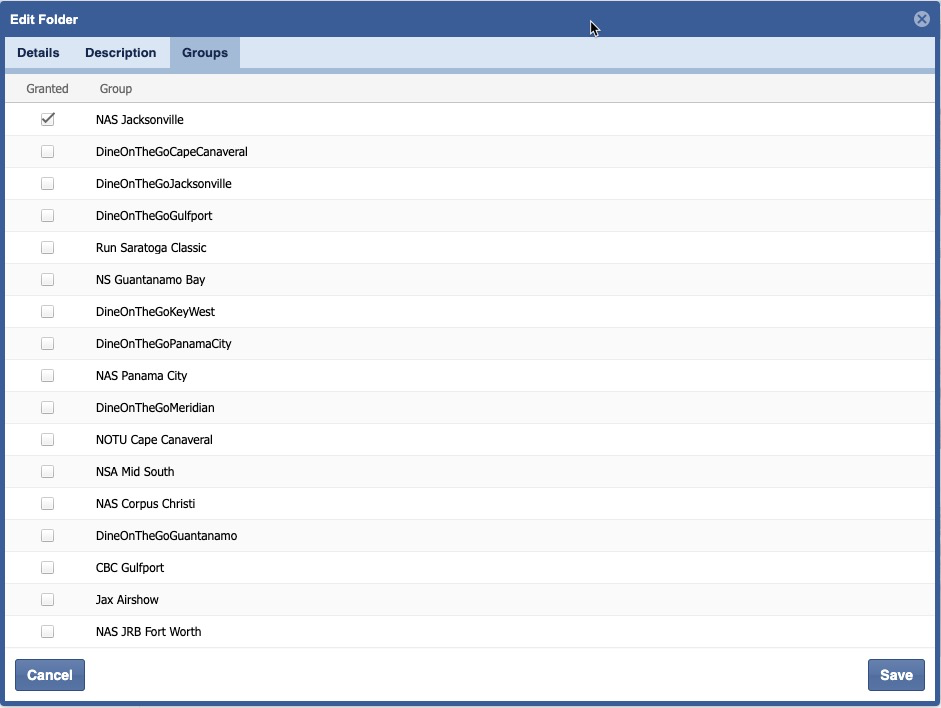
Click Groups.
Tab: Groups
Select the box(es) of the group(s) you wish to include in the collection.Click, click Save.

ON THIS PAGE
- Collection Creation Creation
- Moving Assets Between CollectionsBetween Collections
- Edit a Collection Collection
- Delete a Collection Collection
| Anchor | ||||
|---|---|---|---|---|
|
Moving Assets between Collections
Navigate to the collection of asset origin.
Select the Collection Folder.
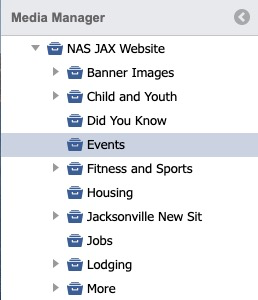
Ensure the "TO" folder is visible within the folder structure.
On modern browsers, Drag and Drop files into the "TO" folder.
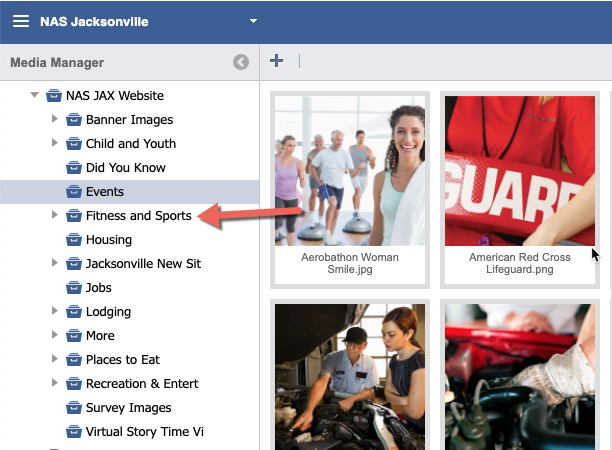
A success message will display for every successful asset move.

Click on the Collection where the documents were moved to confirm.
| Anchor | ||||
|---|---|---|---|---|
|
Edit a Collection
Select a Collection Folder.
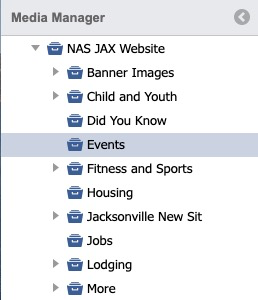
Click the Settings icon.

This will bring up the Collection Folder Details. Modify the tabs and details as needed.
Click Save.

| Anchor | ||||
|---|---|---|---|---|
|
Delete a Collection
Hover over the collection you wish to delete.
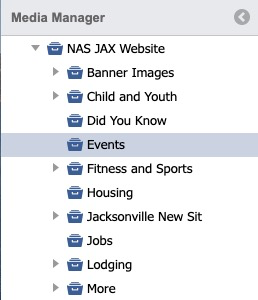
Click the red "Minus" button.


Click "Yes" to delete folder.