Page History
| Anchor | ||||
|---|---|---|---|---|
|
Gallery Creation
Hover over the container folder
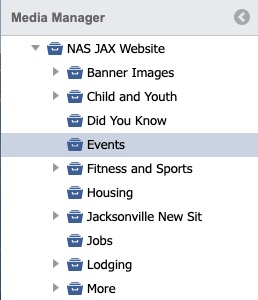
Select the Create Folder icon.

This will bring up the Gallery Folder Details.

Tab: Details
On the Folder setup, enter a title and Friendly URL (optional).
- Title
Name of the gallery folder
Click Groups.
Tab: Groups
Select the box(es) of the group(s) you wish to include in the collection.
Click Save.

| Anchor | ||||
|---|---|---|---|---|
|
Create a Gallery from a Collection
Follow the steps outlined in Gallery Creation to create the Gallery folder, if not already present.
Click on the Collection(s) that will make up the Gallery and select the desired images.
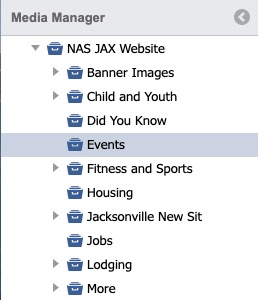
Click, Drag and Drop the images onto the desired Gallery. If needed, scroll the left pane to show the Gallery, first. The Main Content area will still show the Collection.
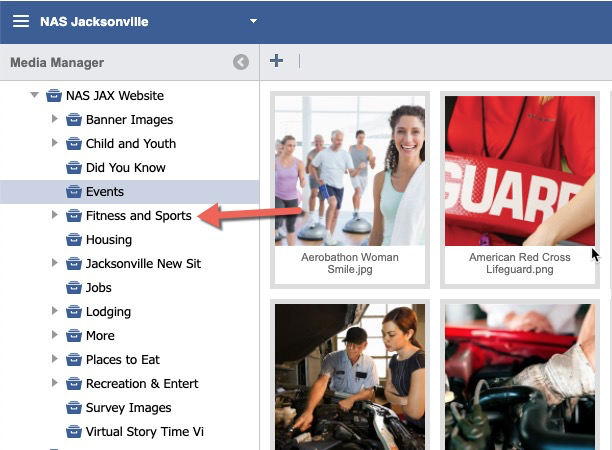
Notifications will pop up for successful additions to the Gallery.

The images have now been added to the Gallery.
| Info |
|---|
Note that images are not moved out of Collections, just linked from them. |
Galleries can be made up of images from multiple Collections, if desired, using the same steps.
| Anchor | ||||
|---|---|---|---|---|
|
Delete a Gallery
Hover over the gallery you wish to delete.

Click the red "Minus" button.

Click "Yes" to delete folder.