External Redirects
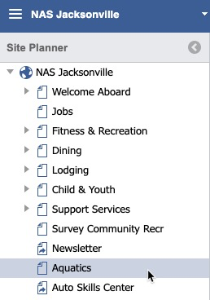
Select a page in the left panel.
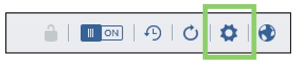
Click the Settings icon.
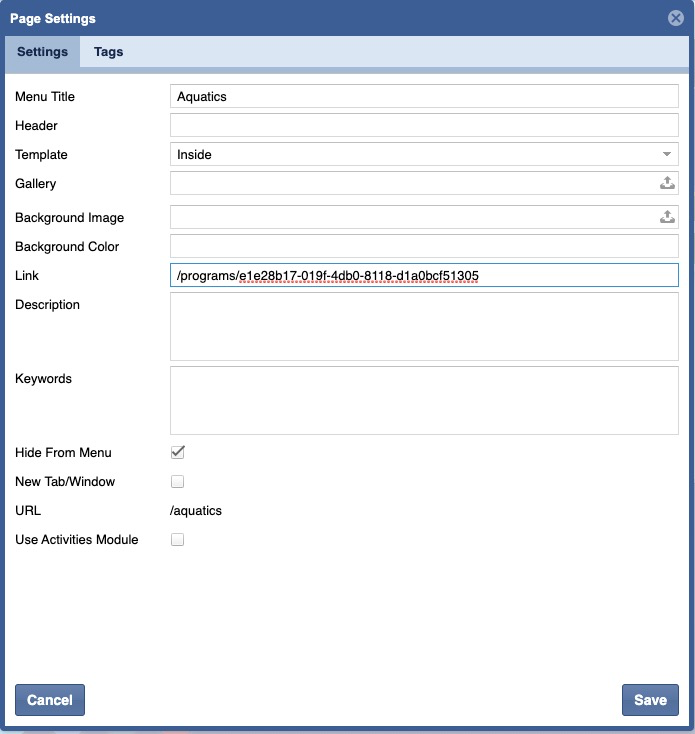
In the Link field, paste in an external link.
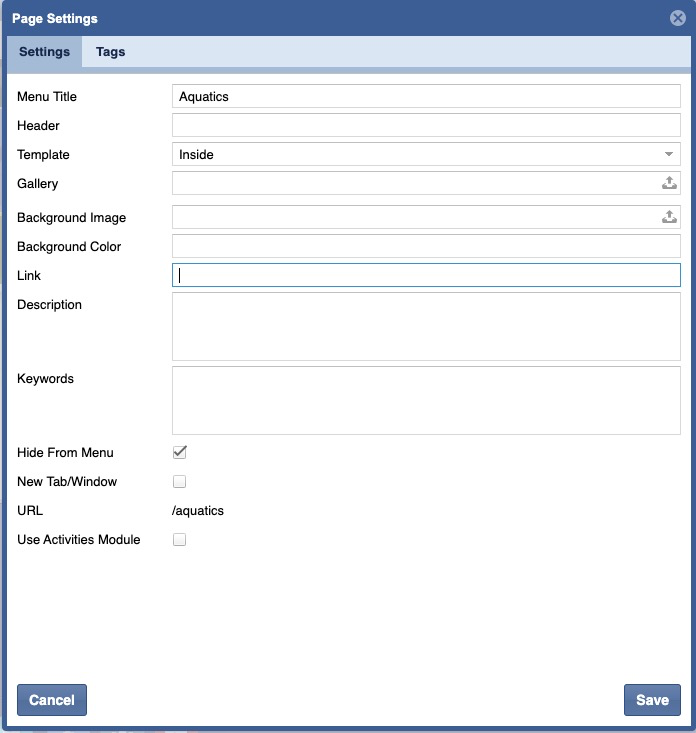
Click Save.

In the left panel, the page icon changes to a Page Direct icon.

Publish and Approval is then required. For more details see Publishing and Approvals.
TO ACCESS Site Planner:
launch the application
from global navigation
select Site Planner
- select a Site Page
- select Page Settings icon.
ON THIS PAGE
Content Redirects
Select Content Explorer

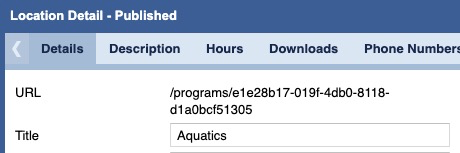
Click on a Category and double-click a Content record.
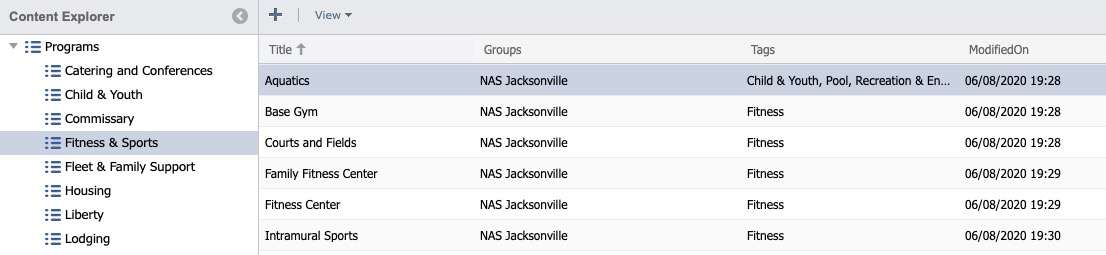
Copy the URL from the Details tab.
Navigate to Site Planner and select a Page in the Left Panel.
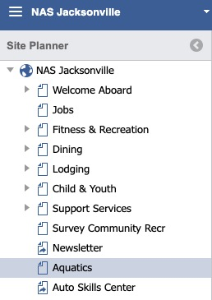
Click the Settings icon.
In the Link field, paste in an external link.
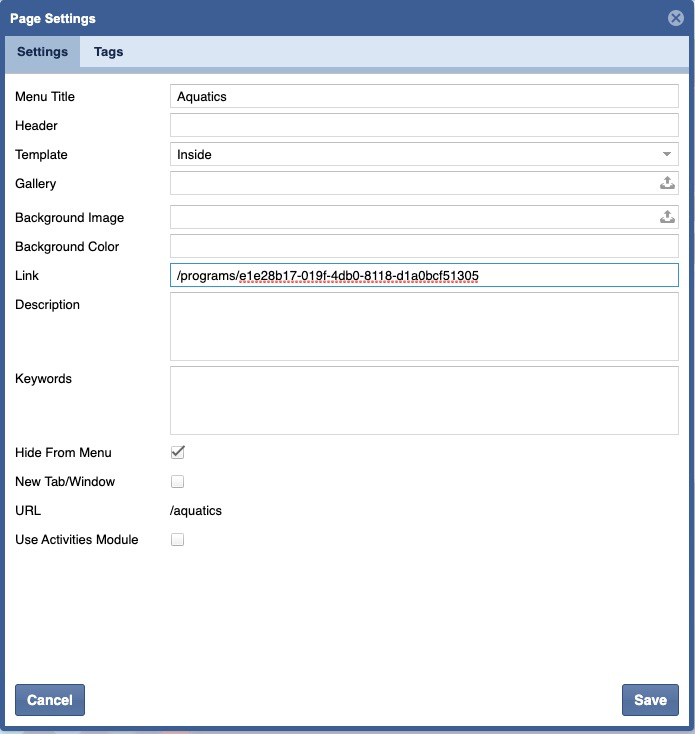
Click Save.
In the left panel, the page icon changes to a Page Direct icon.
Publish and Approval is then required. For more details see Publishing and Approvals.
Redirect Removal
Select a page in the left panel.
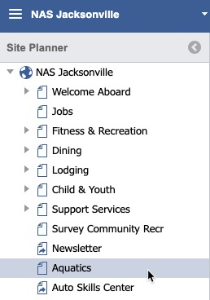
Click the Settings icon.
Once on the page settings, remove the URL from the link field.
Click Save.