The Site Planner provides governance of web sites through the management of Pages. Pages assemble and display content from components, blueprints, structured data repositories (content explorer) or file objects (media assets). |
Besides its primary content, a page contains other content such as site branding (site name, slogan, and logo), navigation aids (menus, links, and icons), formatted text, and images. These default page elements are defined by Templates which form the basis for creating a new page. When creating a page, you must select a Master and Content template, which will be used as the basis for creating the new page.
Accessing the Site Planner
Click on the Hamburger Menu in the upper left corner and select Media Manager.
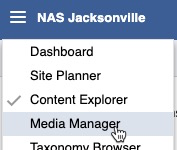
TO ACCESS Site Planner:
launch the application
from global navigation
select Site Planner
- select a Installation Home Page
ON THIS PAGE
Navigating the Site Planner Console
Navigating the Site Planner Console
The Site Planner console contains pages, each page will fall under a root node. The root node being the Installation home page and each page representing a webpage. The root node will be identified by a globe icon, while the pages are identified by a page icon.
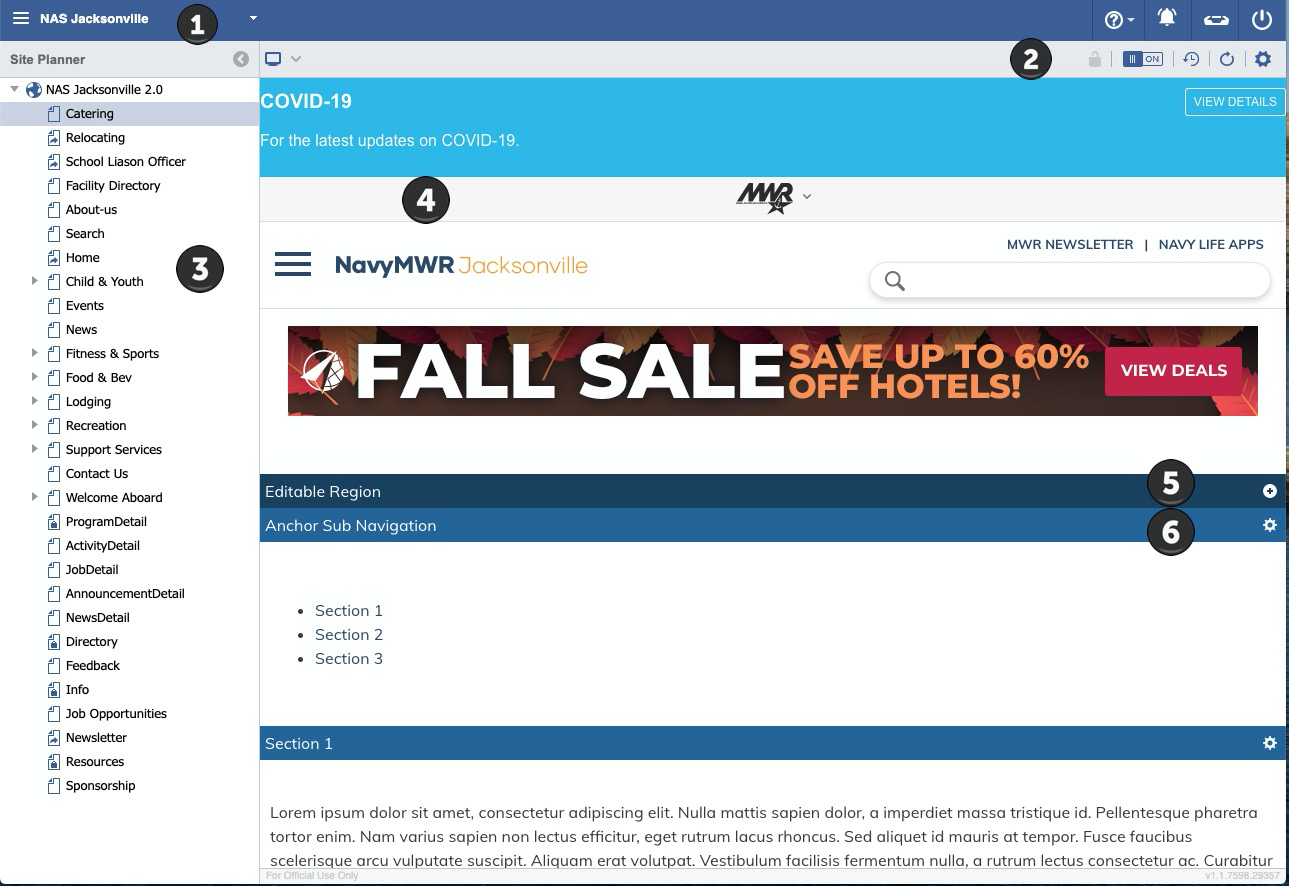
This Diagram display Site Planner console
Within each console there are tools available that are specific to the sub-menus and their records/features. | |
Number | Description |
1 | Global Installation Picker: Once selected all consoles and content will filter to display only the selected Installation grouped content. |
2 |
Console Action Toolbar: (From left to right) View Mode- Select a display channel to view previews of Web, Mobile and Tablet page views. Checkout Page- In order to edit, users must checkout the page to commit their changes. Edit Mode- Defaulting ON, editing is allowed. If OFF, the page function as a preview and can be navigated like a live page. History- Page Versioning is available, allowing users to revert to a previous page history or to view a page version listing. Refresh-Refreshes the console view. Page Settings- The Page Settings define the Layout, Galleries, Keywords and Other Details associated to a page. Site Settings- Settings to manage URLs outside the current Domain. Identified as an Approved or Partner Sites. These Settings are in addition to the enterprise Whitelist and Partner lists. |
3 | Left Panel: Displaying the listing hierarchy of Site Pages.
|
4 | Main Panel: Displays a preview of the Site Pages. |
5 | Add Component: Add a component to the Editable Region. |
6 | Configure: Configure component attributes. |

 Root Node- Installation Home Page
  Site Pages- Pages falling under the Installation Home Page.
 IN THIS SECTION
Authoring (Create) a Site Page
To add a new Site Page, select a Installation Home Page (Root Node) OR a Site Page.
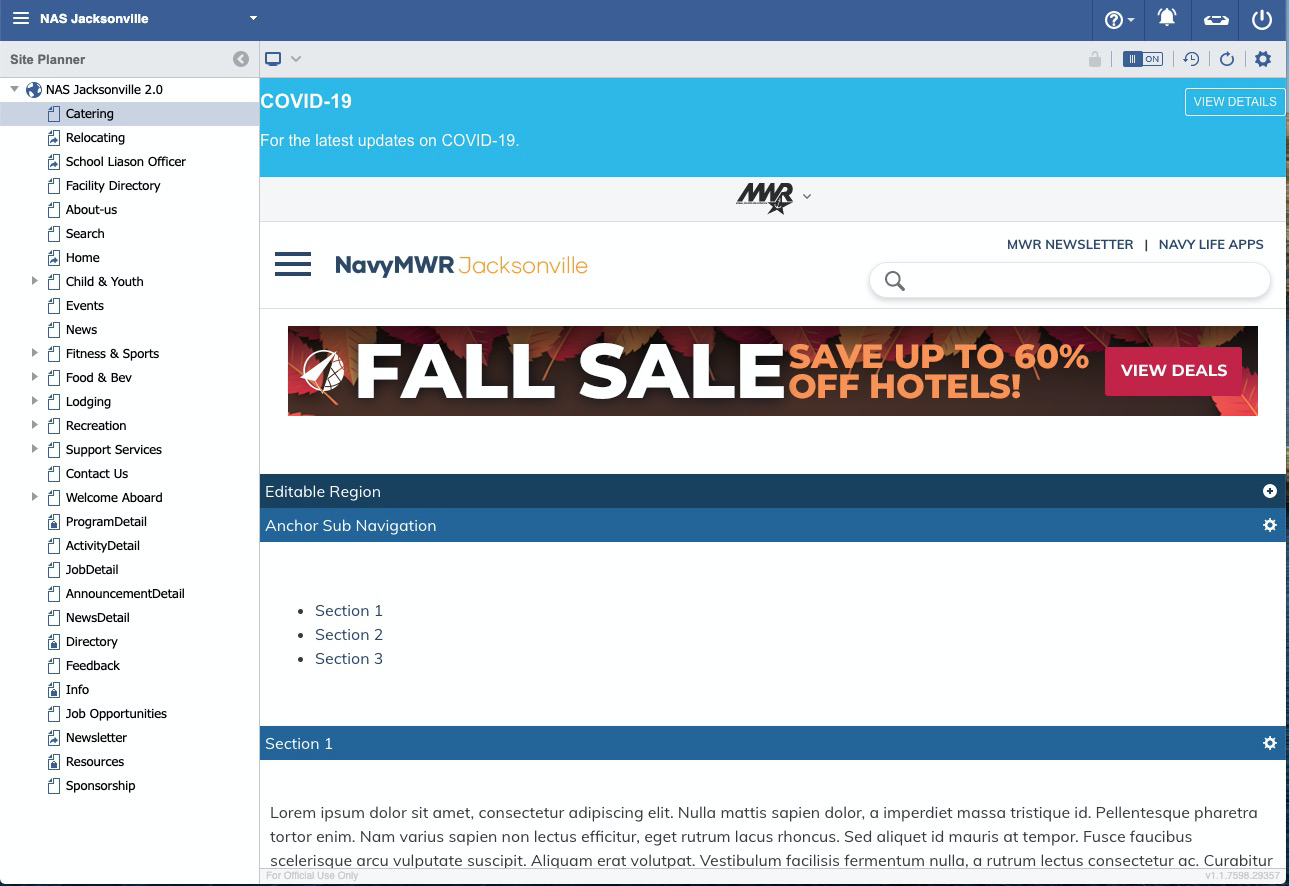
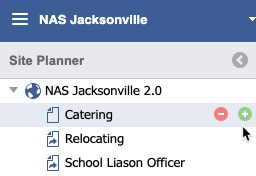
In this example, we are selecting the Catering site page, under the NAS Jacksonville Installation Home Page.
Hover over the Catering.
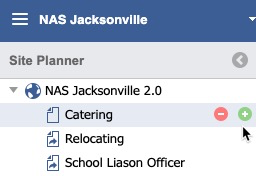
Select the Create icon.

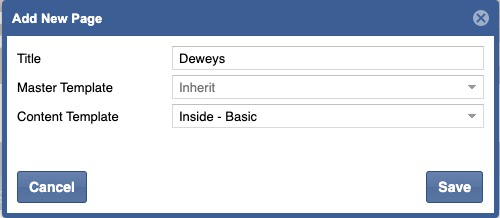
Complete the Form.
Click Save.
The new page will display in the left panel with a Checkout (lock) icon.
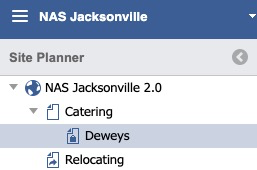
Newly created pages automatically checkout the page for editing. The creator will continue to be the modifier of the page until they publish, or another user checks it out. |
Continue modifying your page.
Once the desired changes have been applied, click the Publish button.

A notification will display, click OK.
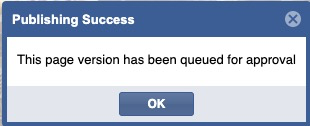
The page is now queued for Approval by the appropriate Administrator. Users with applicable permissions will be able to Approve changes. |
Click the Approve Button.

Enter in an Approval Message and click the Approve button.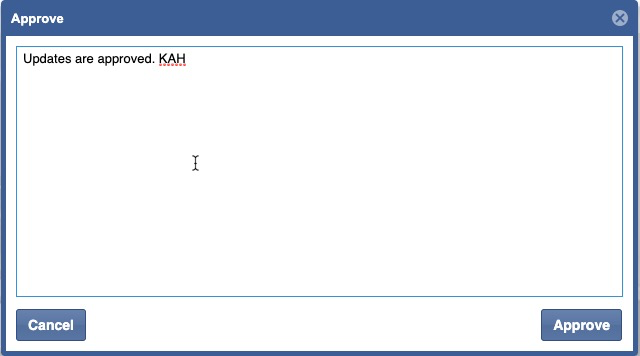
Once approved, the updated page is published to the public facing URL.
For details, see Publishing and Approval.
Delete a Page
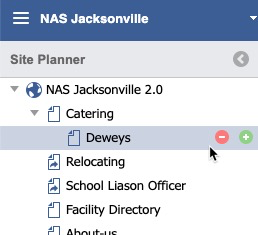
In this example, we are selecting the Dewey's page, under the NAS Jacksonville Installation Home Page.
Hover over the Deweys Page.
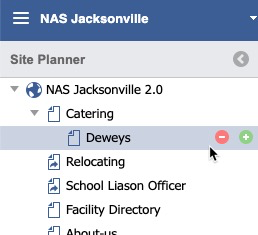
Select the Delete icon.

A Confirmation will display, click Yes.
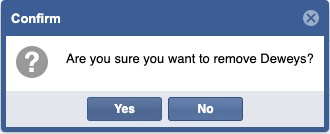
The page is now removed.
Managing Site Pages
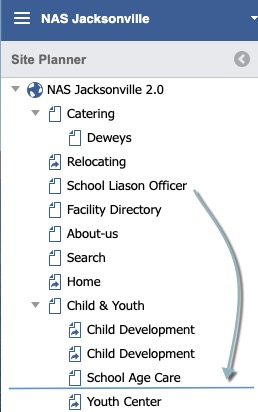
Select a Page to move.
Click and drag the selection Page to the desired position is the site tree.
Page icons indicate status
|
 Root Node of a Site/Home page
 Site Page
 Checked out Page
 Redirect link tp specified URL
Site Settings
Select the Root Site Node/Home Page in the Left Panel.
Click the Site Settings icon in the toolbar

Add Whitelist or Partner domains
(one domain per line)
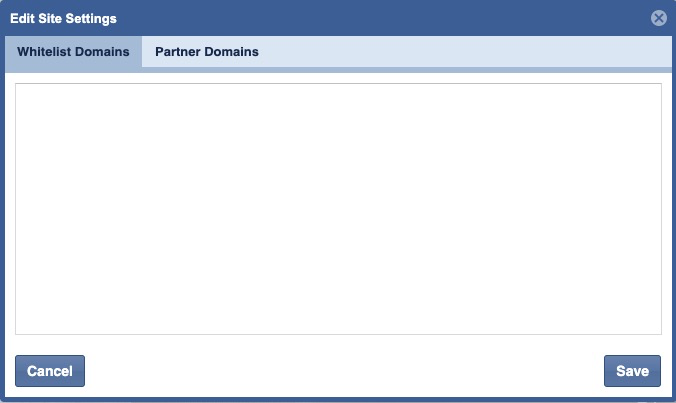
By default, all web sites inherit the global Whitelist/Partner domains specified by the System Administrator. Site Settings allows local site contributors to append additional Whitelist/Partner domains to the global domain listing for their site. |
- Whitelisted domains will not display the default warning prompt when clicked.
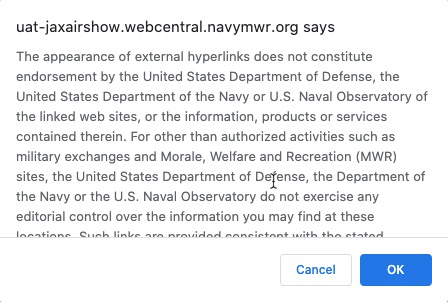
- Partner domains will display a prompt to inform users they are being redirected to a Partner site.
This image displays Partner Links prompt
Page Settings
Select a Page in the Left Panel.
Click the Page Settings icon in the toolbar.

The Page Settings dialog screen displays.
It is possible to move forward to the Next Tab or Back to the previous Tab before committing the Page Settings with Save. |
Settings Tab
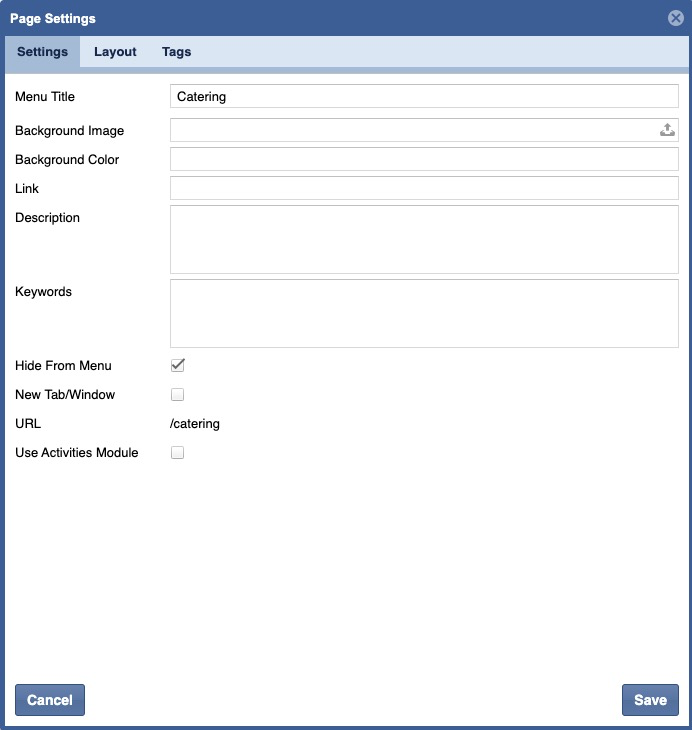
Menu Title
Title of the Site Page.
Link
Entering a URL here will redirect to an external page upon navigating to this selection.
Description
Enter in a page description to display in search results.
Keywords
Enter in keywords for more accurate search results.
Key words can be separated by , |
Hide From Menu
Hides the Page from the menu navigation. Page can still be accessed publicly via URL.
New Tab/Window
Opens the Page in a new browser tab.
URL
Displays relative system path to the Page.
Layout Tab
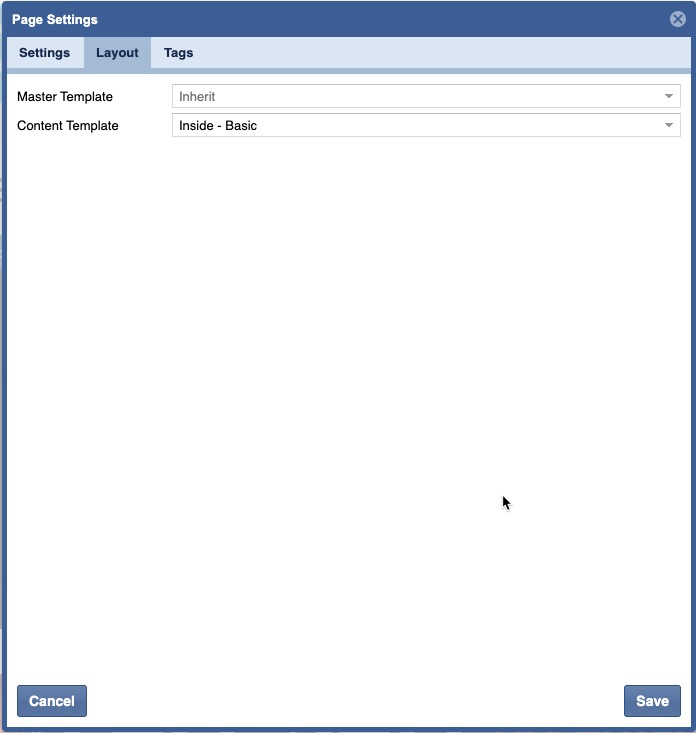
Master Template
Defining the Header and Footer of page templates.
Content Template
Defines the editable regions and components within a page.
Tags Tab
Add one or more tags for the Page. Tags add metadata to denote the Page’s intended purpose or content.
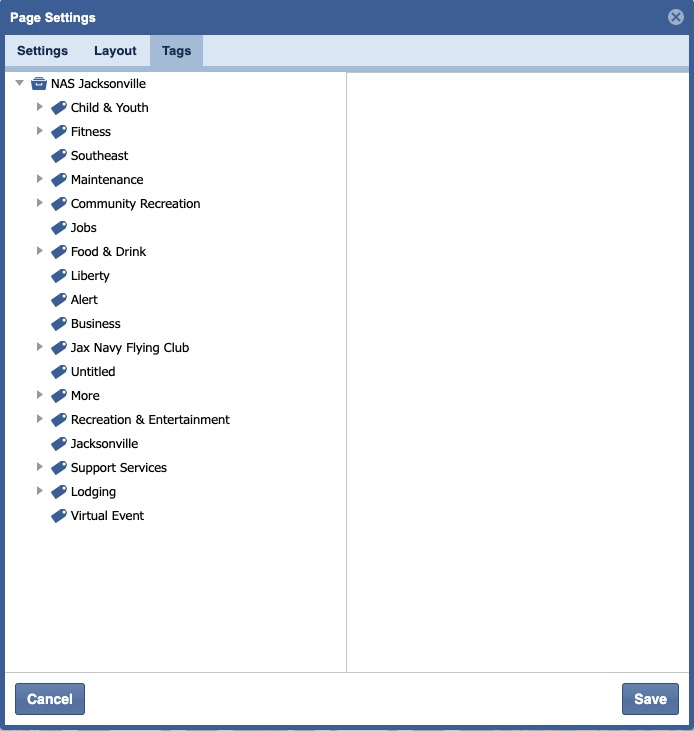
Featured Search Tag
If tagged with "Featured Search", search results will boost these results, appearing with featured content highlight. |