Smart Lists are components that enable the quick addition of lists made up of existing content. Items like News, Events, Announcements, FAQ, etc can be quickly added to a page.
Step-by-step guide
Add the steps involved:
- In the Site Planner, with a page selected, Click on the Edit Region Area.
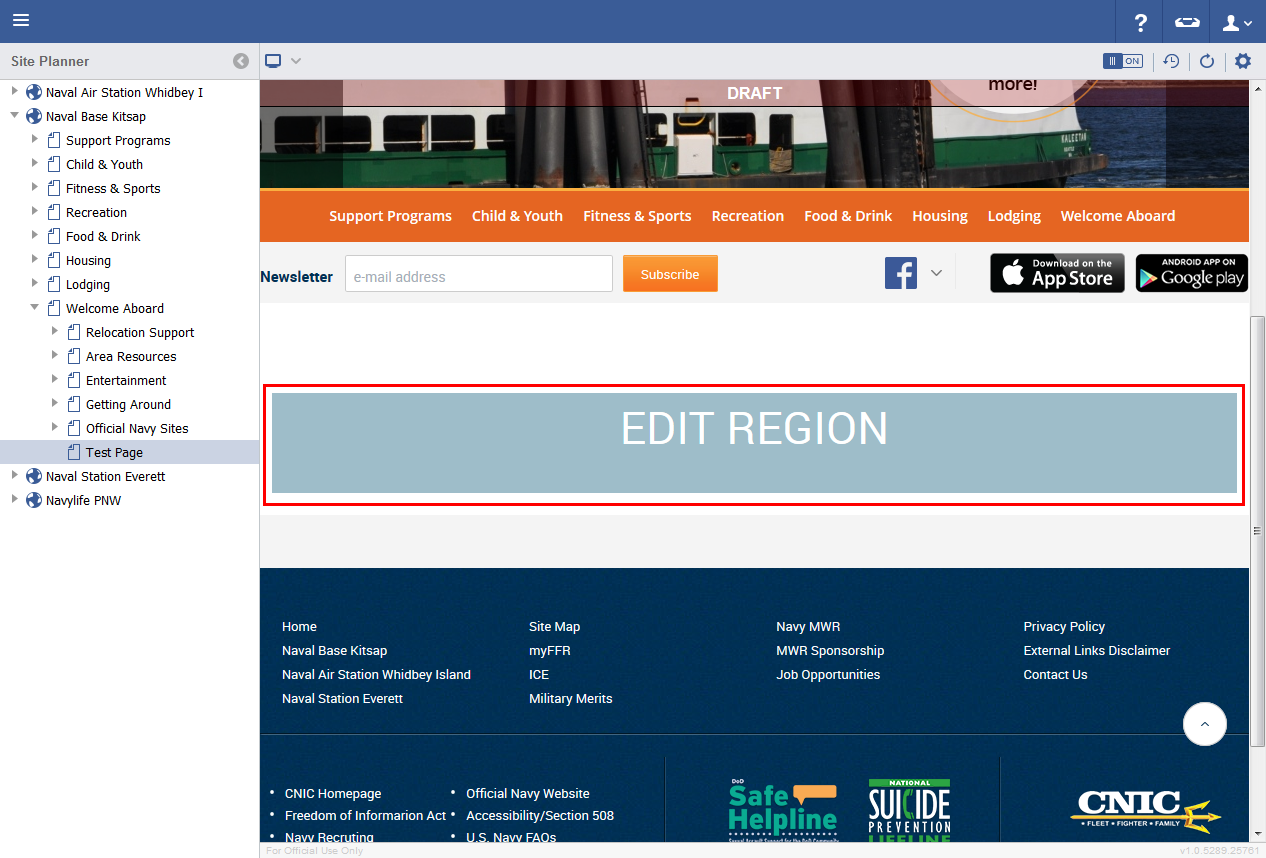
- Click on the Lists Tab in the bottom of the right Sidebar.

- Double Click on the News Item from the list, for example.

- Select a Style from the Style Dropdown.

- Enter a value in the Records per Page field.

- In the Tags tab, select any relevant tags to be associated with the list, if any. Click on the arrow to add it to the right side of the list.

- In the Groups Tab, select Groups that will have access to view the list.

- Click Save.

- A Smart List is created with options to add spaces above and below, as well as Edit and Delete buttons.

Smart List Buttons

| Circle Numbers | Button | Description |
|---|
| 1 | Insert Space Above | Inserts a Paragraph space above the Smart List. |
| 2 | Insert Space Below | Inserts a Paragraph space below the Smart List. |
| 3 | Edit | Edit the existing Smart List. |
| 4 | Delete | Delete the Smart List. |
| When a Smart List is saved to a page and previewed on the frontend, it's styling will fit the look and feel of the site. |