Navigation Info
MTP Orders > Vendor Listing
- Double click the Vendor Listing.

- Click on the Create MTP GR button.

- Fill in the Vendor Document ID Field:

- Click on the Browse button.

- Navigate to the Document to be used for the import function. Click Open.

- Click on the Save button.

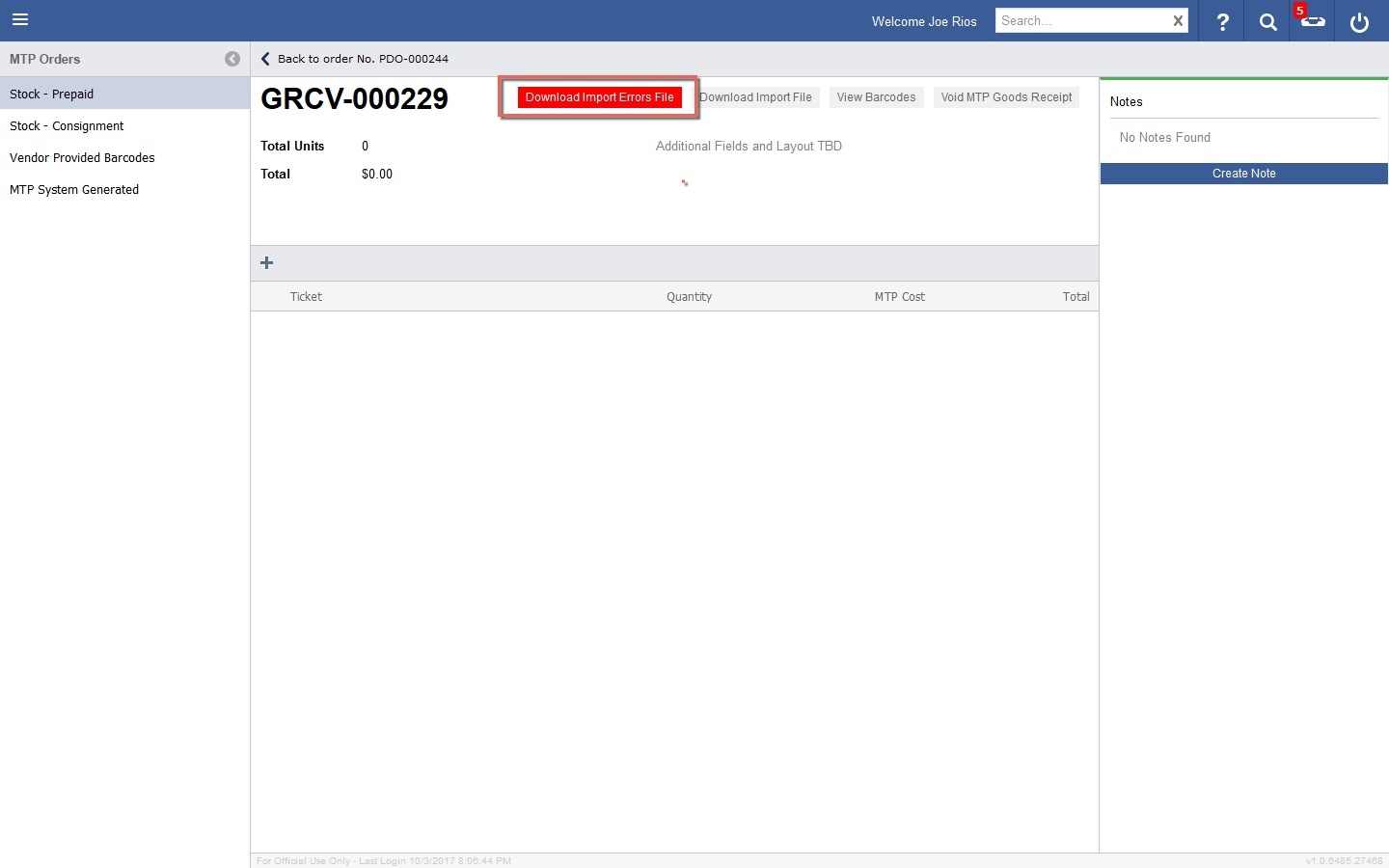
- If the Import was successful, it will show a green dot next to it. If it is not, a red dot will be shown, where troubleshooting can done to investigate the error by double clicking the GR in question.

If the Goods Receipt fail, a "Download Import Error File" will be present within the Goods Receipt. Click to download. The failure reason and barcodes will be included in the file.