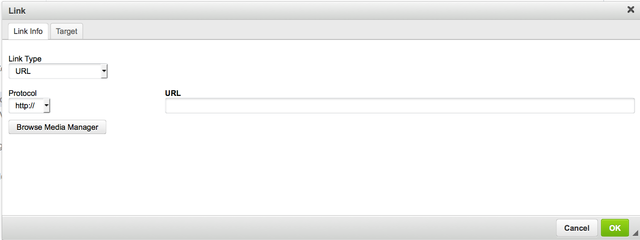
Page History
...
As an example, the Anchor dialog window is presented below: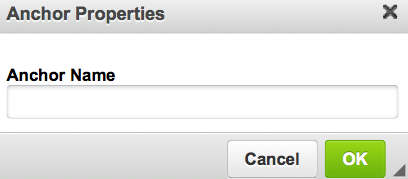
When a dialog window is open, the main editor window including the toolbar is blocked.
All dialog windows contain the  button that lets you confirm the settings and return to the main editor window as well as the
  button that closes the pop-up window without introducing any changes to the document.
Another way to close the dialog window and return to the editing area is to use the  button located in the top right-hand-side corner of the window or to press the Esc key on your keyboard.
Depending on the options available for a particular feature the dialog window may contain different elements. Some windows may also contain tabs with additional configuration options. To navigate between the tabs simply click their labels. You can also move between tabs with your keyboard. To enter the tabs list, press the Alt+F10 shortcut while in the dialog window. To move to the next tab, use the Tab or Right Arrow key. To go back to the previous tab, press Shift+Tab or the Left Arrow key.
...
The RTE dialog windows all open with some default size. If, however, you would like to resize a dialog window, you can easily do it by clicking and dragging the resizing grip in the bottom right-hand corner of a dialog window.
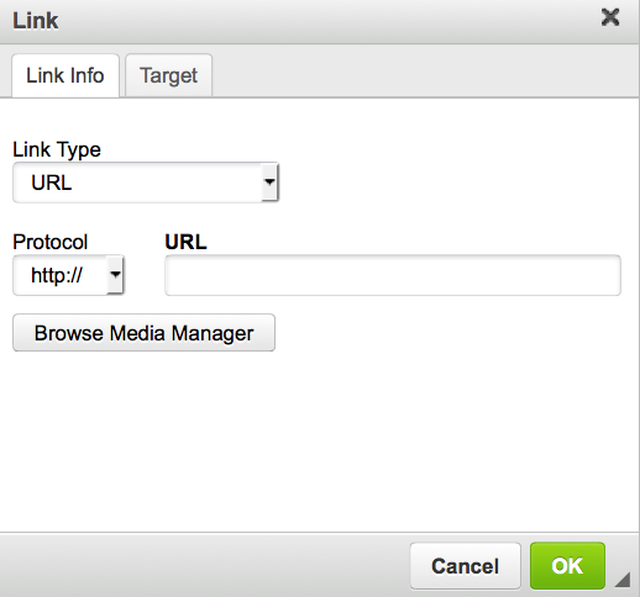
Since the text entered into some text fields (particularly the Style field) might be longer than their default size, you may wish to resize the dialog window. Use the Drag to resize feature to change the width and height of a dialog window as needed.