Page History
| Note |
|---|
Your view is restricted by your Role. If you do not see the Region or Installations expected please contact your Administrator. |
Step-by-step guide to add an Installation's headcounts
- Open the workspace selector by clicking on the three line menu icon in the upper left corner of the system.
 Click Menu
 - Select Personnel.

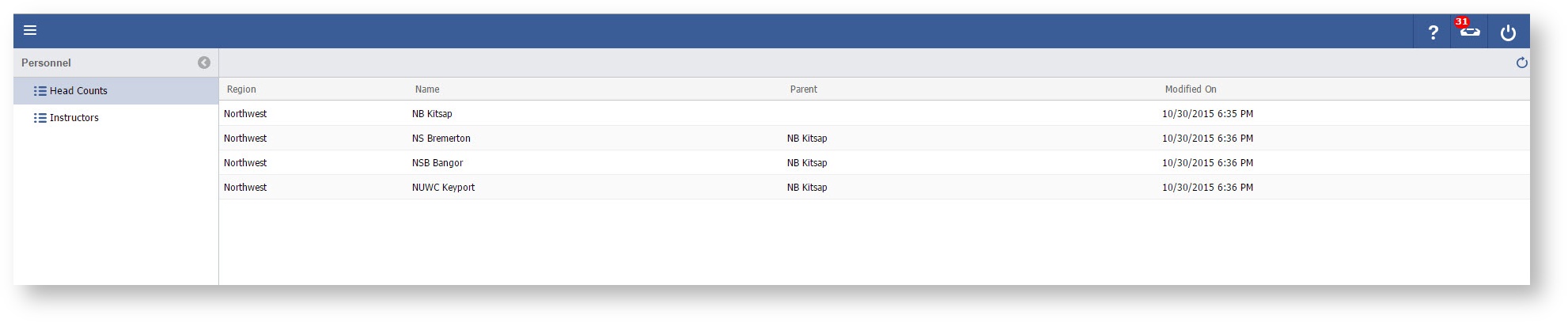
- Select Head Counts

Double Click an Installation
...
- Headcounts on the left panel.

- Double click the Installation you wish to enter in headcounts.

- Click the "+" sign button.
...

...
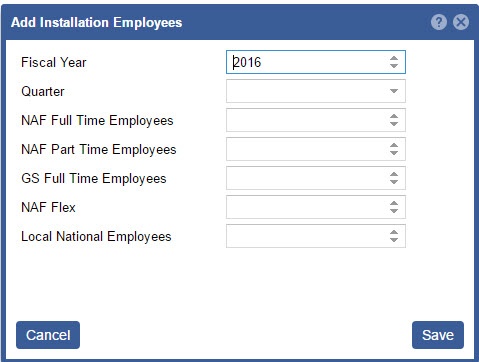
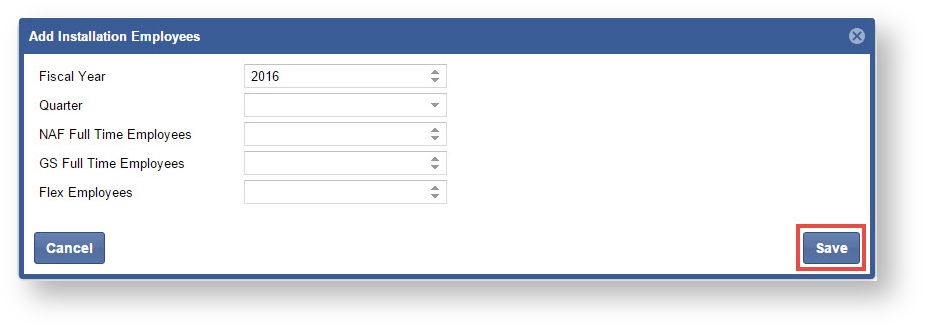
- Enter in the required information
...
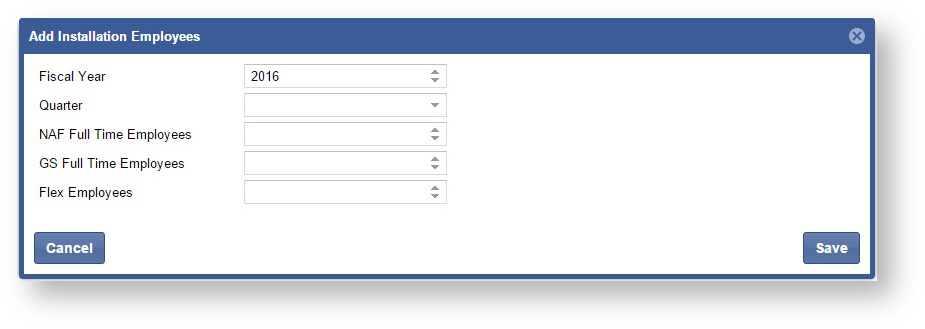
...
- and click the "Save" button when complete.
Note: Fiscal Year will default to the current fiscal year.