Page History
| Warning | ||
|---|---|---|
| ||
1. The Activity Attendance page will ONLY display those Activities that are linked to an Activity Category with the Attendance Type marked Scheduled. 2. If you create a session in your catalog that has already occurred it will not show up on the Activity Attendance page. The session needs to be created before the event occurs in order to record counts. |
| Tip | ||
|---|---|---|
| ||
To go directly to the Activity Attendance page click on this icon in the top right of the screen.
|

Once an Activity session occurs the session data will populate in the Open tab of the Activity Attendance page.
Note: The appearance of the Activity will be based on the Time Zone linked to the Installation.
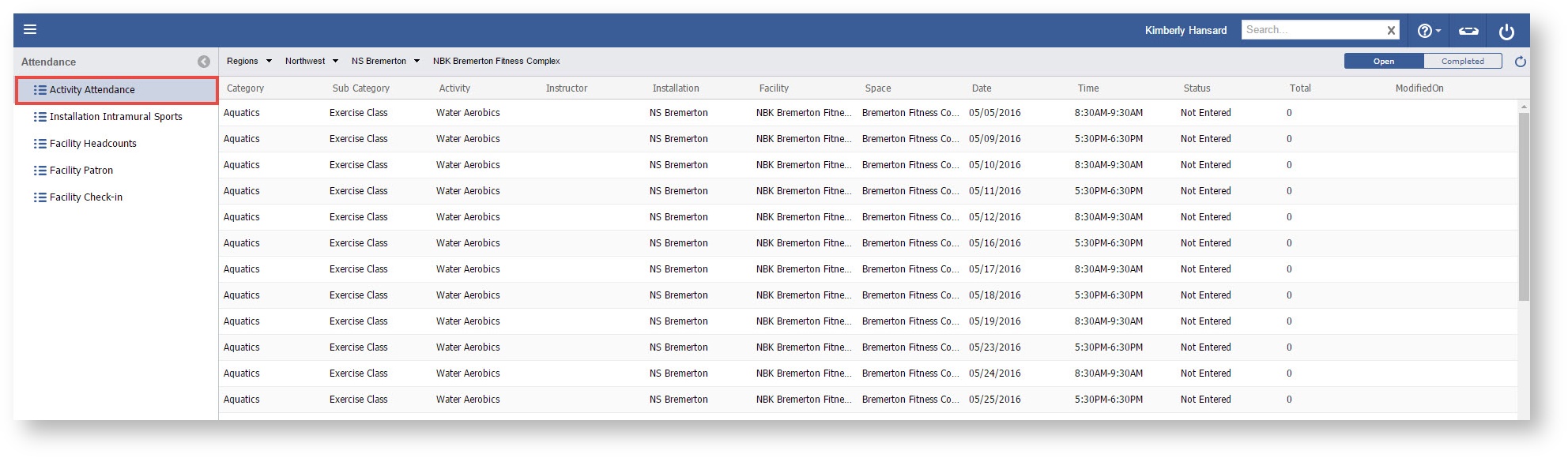
Step-by-step Guide to complete an Activity Attendance record
- Open the work space selector by clicking on the three line menu icon in the upper left corner of the system.

- Select Attendance.

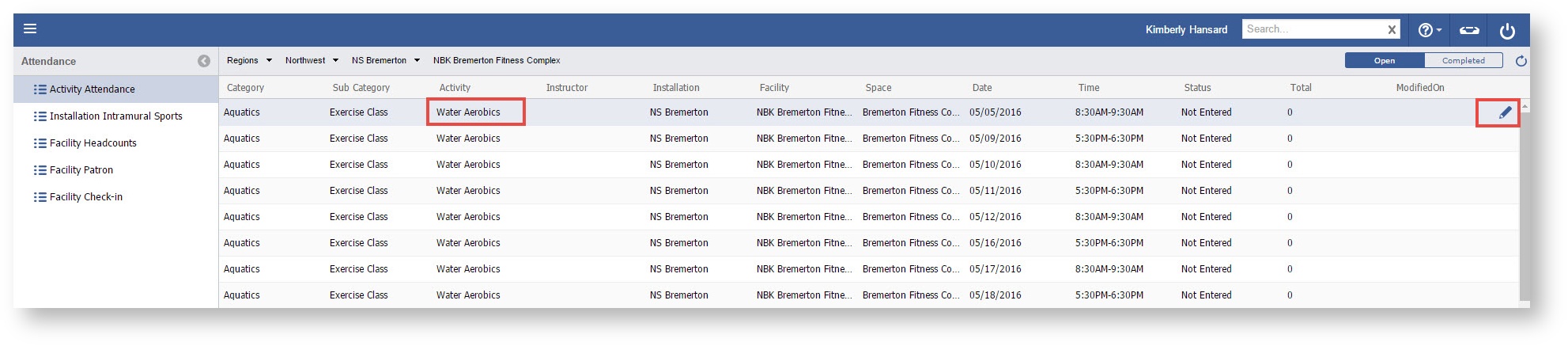
Double click an Activity or click the "Pencil" icon on the Activity you wish to enter in attendance.
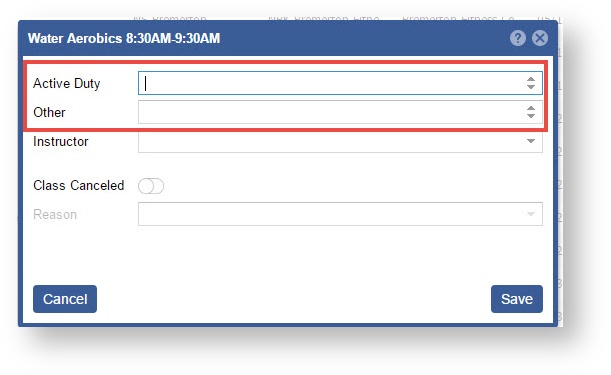
- Enter in the Active Duty and Other count values.
- Change the Instructor if needed. This field will default to the instructor linked on the session occurrence.
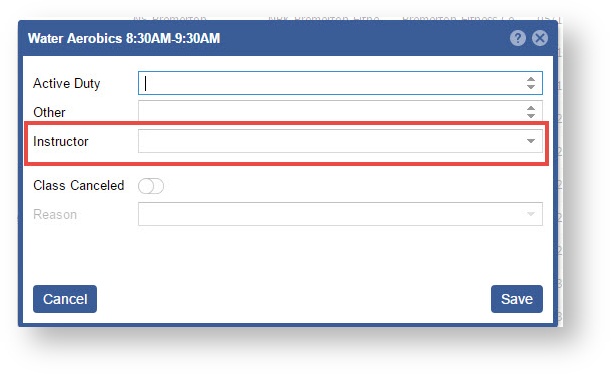
- If the class was cancelled then mark the toggle "ON" and select a reason.
Otherwise, click the "Save" button when complete.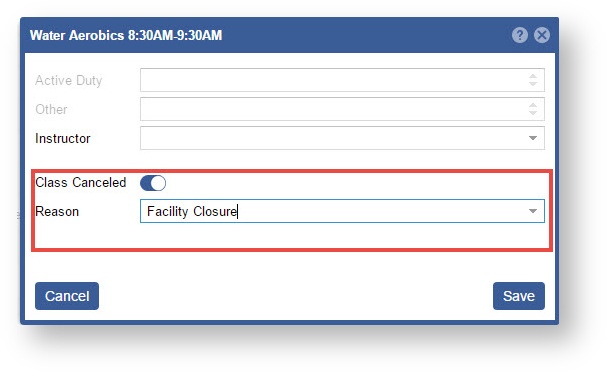
Step-by-step guide
...
Related articles
...