Page History
| Anchor | ||||
|---|---|---|---|---|
|
Navigating Campaign Details
Creation Details
Tab: Details
On the Details tab, a Title, Template.
- Title
Campaign Name
- Template
Preset templates are available in the drop down.
Tab: Groups
On the Groups tab, access is granted to the selected Groups. "IsPrimary" toggle, will determine which installation the event will redirect in the URL.
Campaign Additional Settings
Tab: Details
On the Details tab, a Title, Template.
- Title
Campaign Name
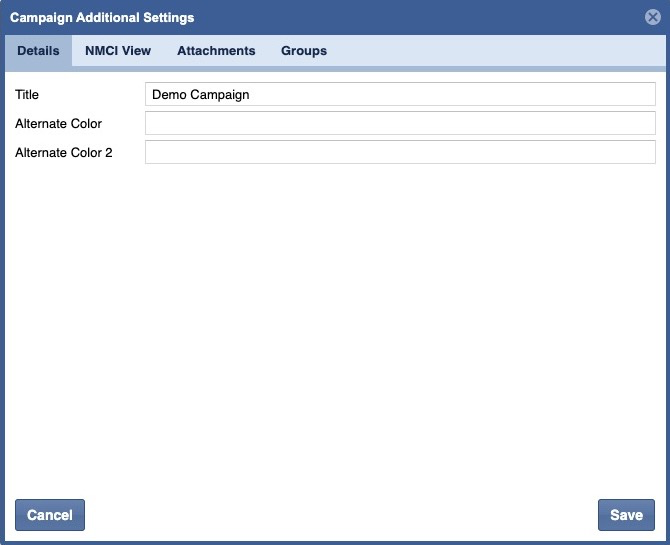
- Alternate Color
An Alternate color can be typed and will override the existing template.
- Alternate Color 2
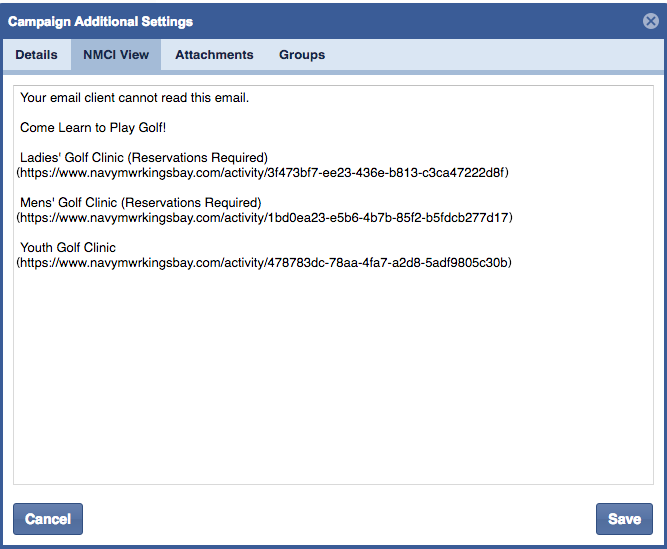
Tab: NMCI View
This tab opens a text-only view. Allowing the content contributor to view the newsletter as if opened on an NMCI computer.
| Info | ||
|---|---|---|
| ||
|
Tab: Attachments
Media Manager assets associate to the campaign.
An example, is a flyer or race day events schedule.
| Info | ||
|---|---|---|
| ||
Be mindful that customers may have a full inbox and if the attachment is large it will bounce. |
Tab: Groups
On the Groups tab, access is granted to the selected Groups. "IsPrimary" toggle, will determine which installation the event will redirect in the URL.
| Anchor | ||||
|---|---|---|---|---|
|
Create Campaigns
To create a campaign, Click the Create icon.

This will bring up the Campaign Details.
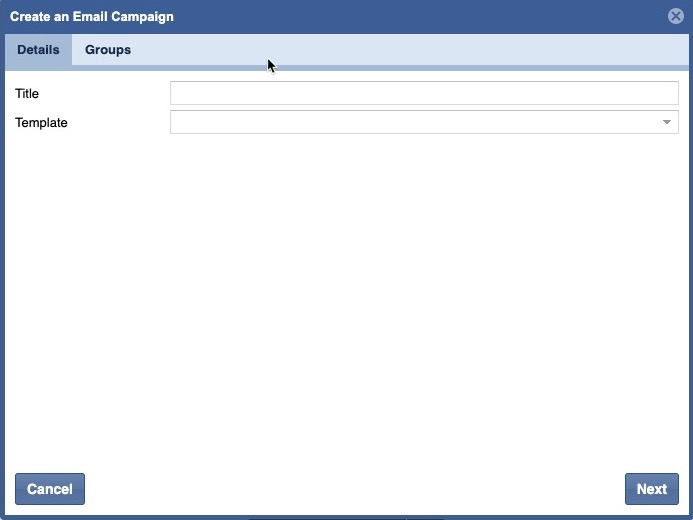
Enter a Title
Change the Template from None to Default.
| Info | ||
|---|---|---|
| ||
|
Click Groups.
Grant access to Group(s).
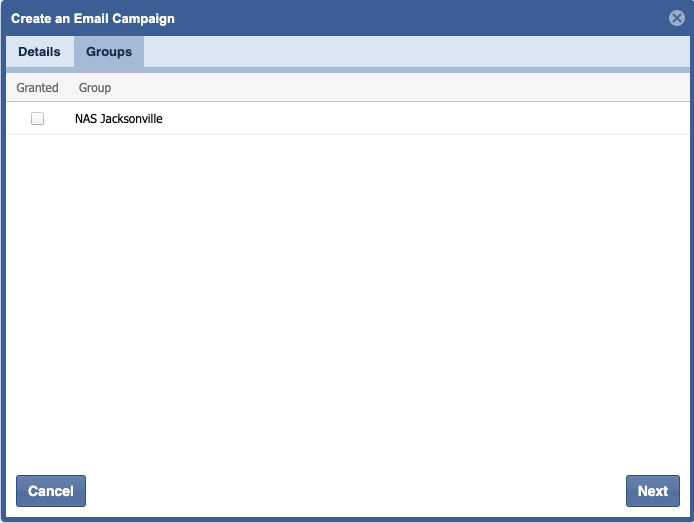
Click Next.
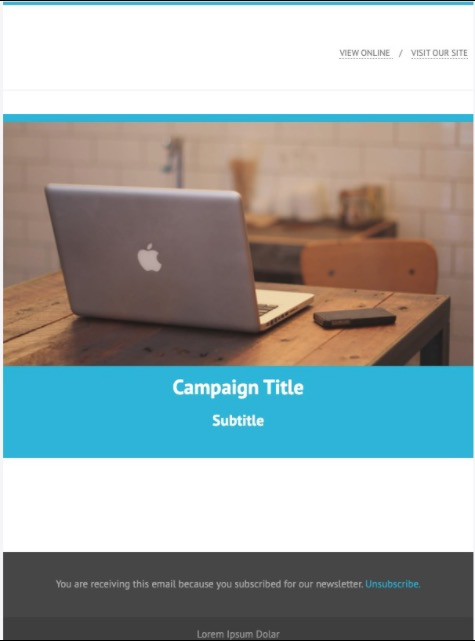
This will open the campaign page editor. Based on the current example, this will display the "Default" template.
Anchor EditCampaignSettings EditCampaignSettings
| EditCampaignSettings | |
| EditCampaignSettings |
Modifying Campaign Template
Change Color Scheme
In the top right, Click Campaign Settings.
This will bring up the Campaign Additional Settings.
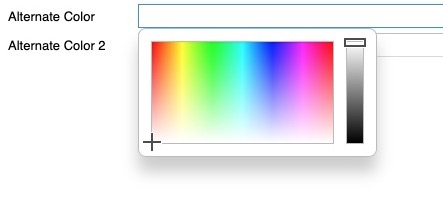
Click in the Alternate Color box.
A color selection tool will display. You can also type a hex color code in the box.
Editable Region Content
Roll over the image to reveal editable regions.
- Image, see info box below.
- Blue region is for a Heading or Title.
- White region is for content Body.
| Info | ||
|---|---|---|
| ||
|
Click the White Editable Region
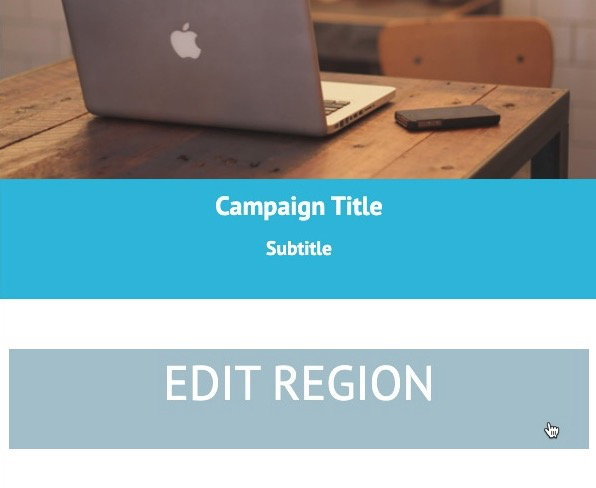
This Region content can be text, additional images, or smart lists from the Content Explorer. This includes events, classes, jobs, news, or programs.
- Add Smart List
Click Edit Region
Select the list icon, in the bottom right of the console.

The (Component) right panel will update to reflect the Content Explorer content types.
Double click a content type.
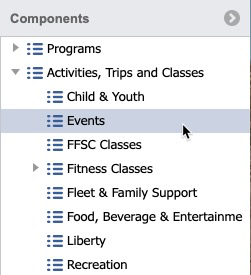
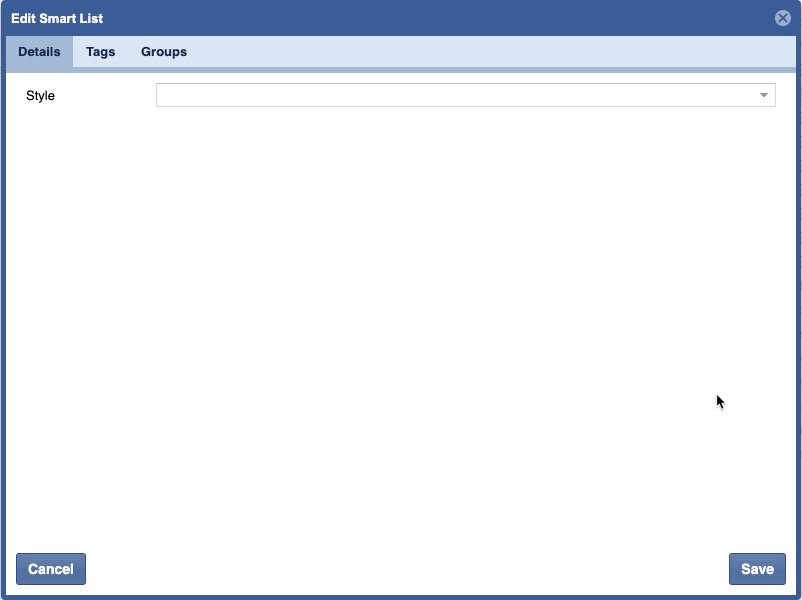
This will open a Smartlist.
Choose the Default style
Click Tags.
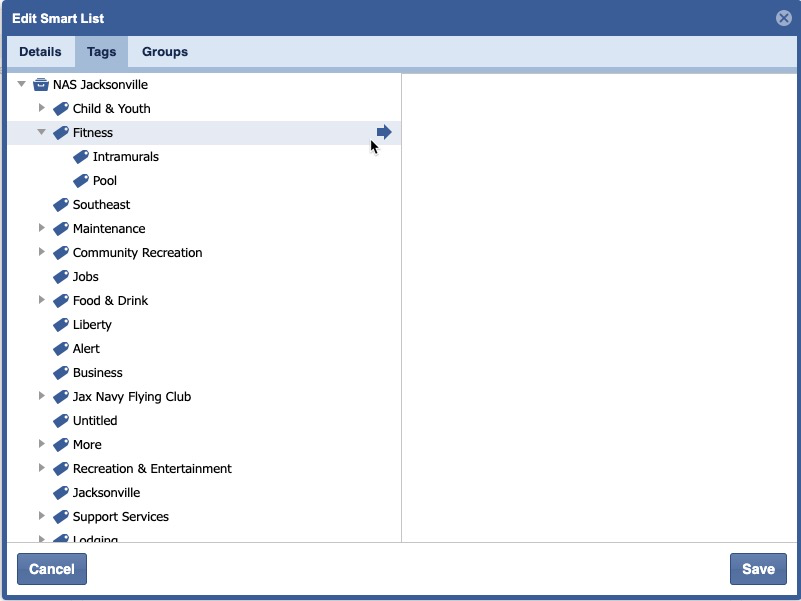
Select a Tag(s)
| Info | ||
|---|---|---|
| ||
To pull in particular events, jobs, news, or programs with a smart list you will need to tag the item. Tags help to divide content. For a detailed explanation of tags and how to use the Taxonomy Browser click here. |
Choose a group, then click Save.
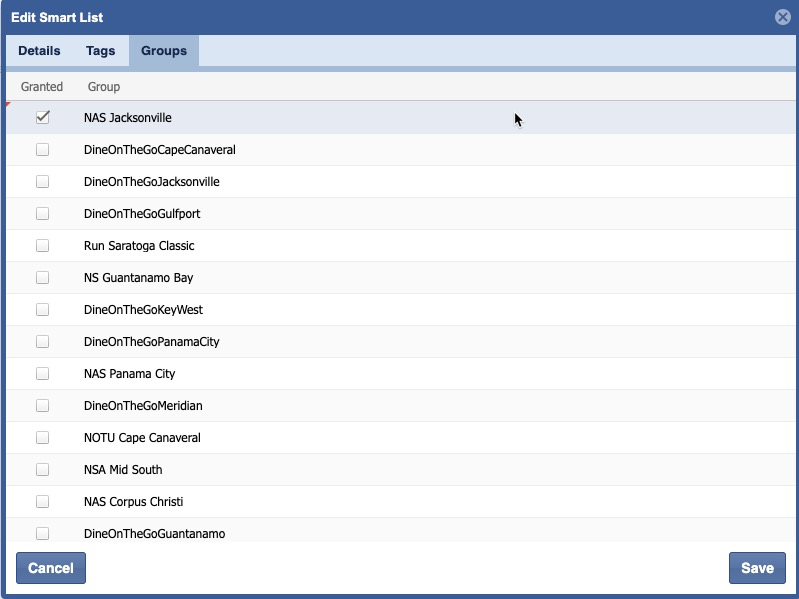
A smart list will look like the below in the Edit Region.
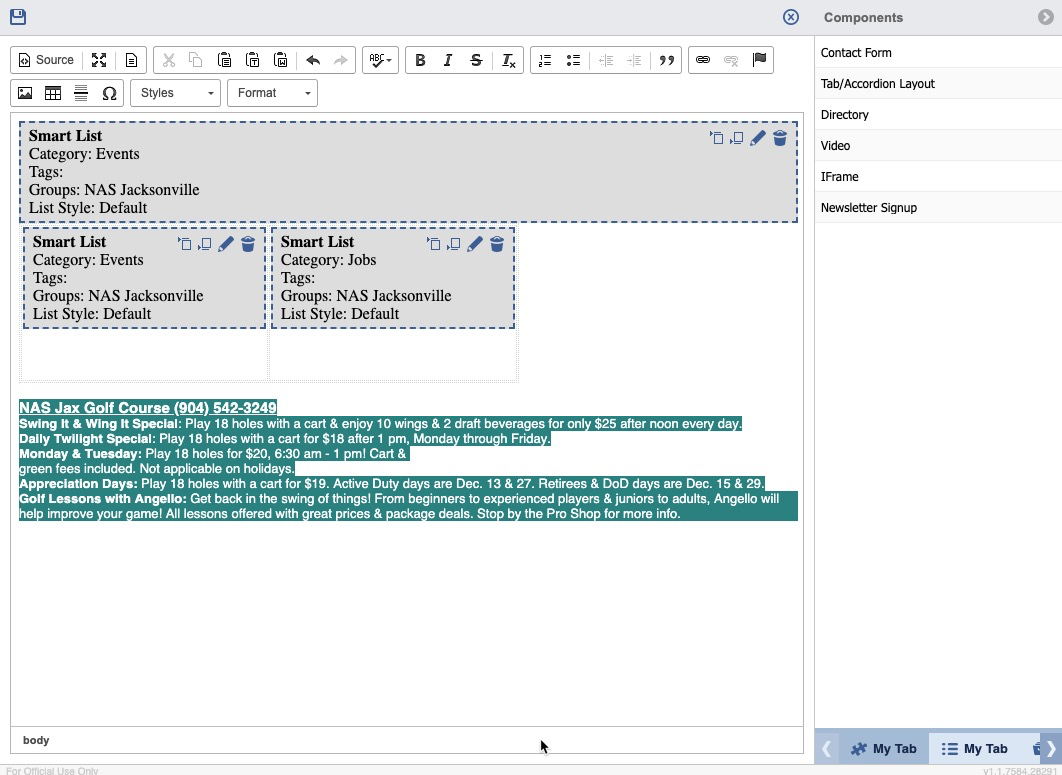
Continue to add content and Save.
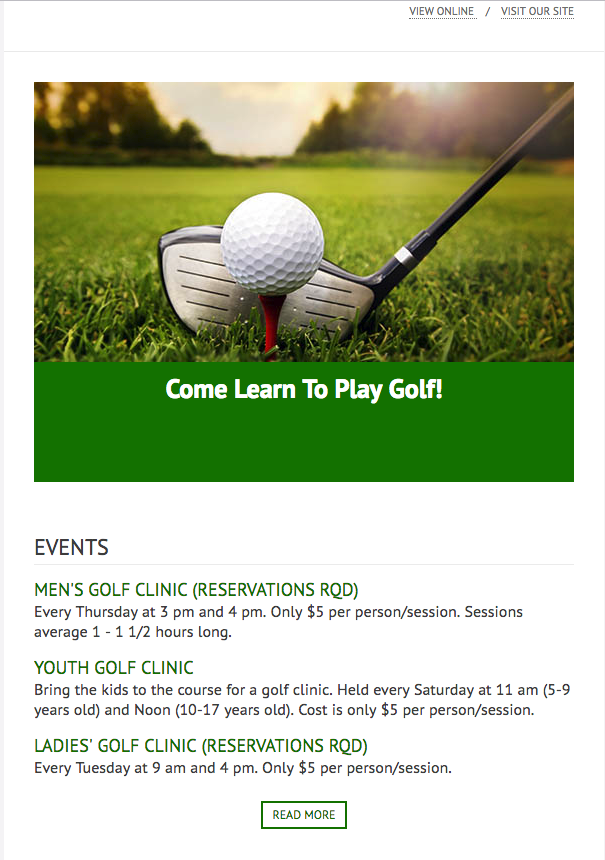
Example Newsletter Template:
Modify Campaigns
Double click a line item.
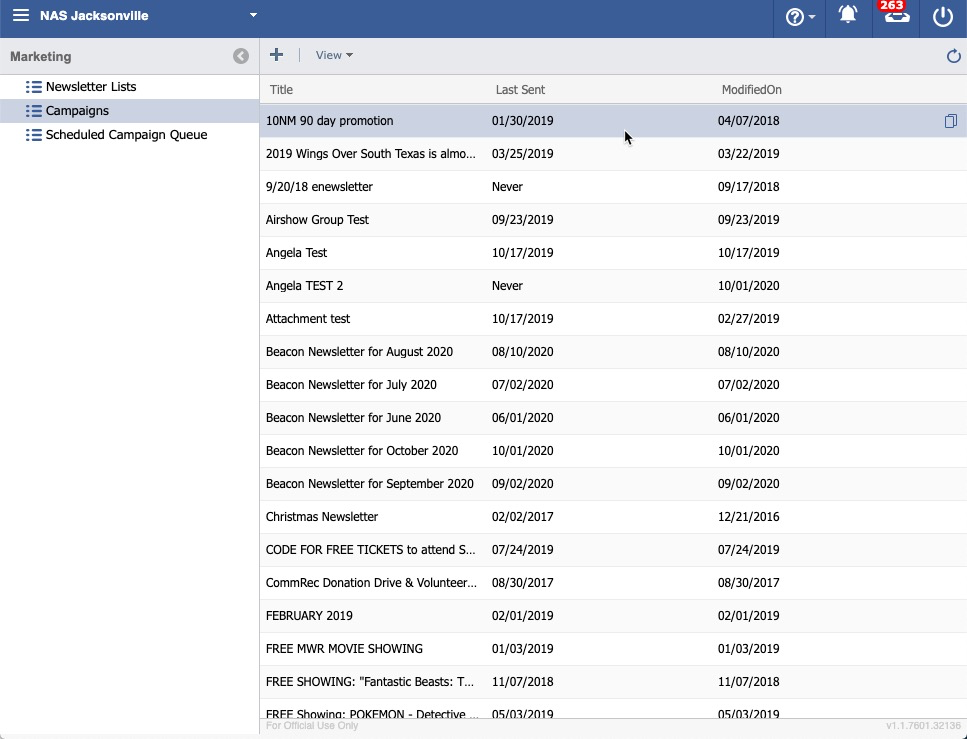
In the top right, Click Campaign Settings.
This will bring up the Campaign Additional Settings.
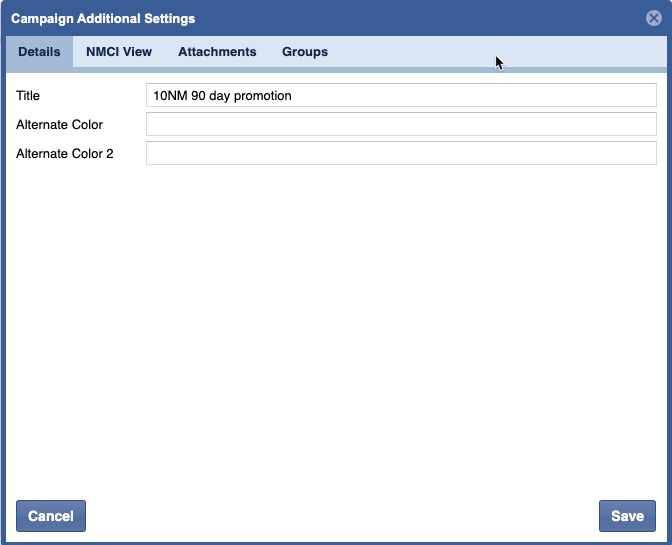
Continue modifying the fields as needed. For more information see Modifying Campaign Template
Delete Campaigns
Click a line item.
On a keyboard, hit the Delete key, Click Yes.