Page History
| Info | ||
|---|---|---|
| ||
The Details captured within the records change to reflect the details needed by the categories, within each content type. Each record detail will capture metadata specific to the content type and categories selected. For example, under the Programs content type, then Movies category, the record metadata captures Additional Information to include Feedback link and NMPS ID fields. This is not captured on any other category because it is specific to the Programs category of Movies. |
Console Action Tools:
Within each console there are tools available that are specific to the sub-menus and their records/features.
Staring from left to right:
Add-Content Detail, View, Active, Inactive, Refresh


Add -Content Detail
Creates structured content according to Type selected.
View (Views vary based on Content Type selected)
If set, the console will only populate data with the selected view filters.
Active (Only present when viewing Activities, Trips and Classes)
Displays all Active records, with a current Start and End Date.
Inactive (Only present when viewing Activities, Trips and Classes)
Displays all Inactive records, with past Start and End date.
Refresh
In cases where a page refresh is needed select this tool.
Anchor AddContent AddContent
| AddContent | |
| AddContent |
Content Creation
To add content, select a content category
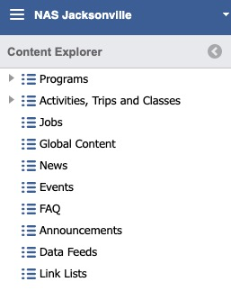
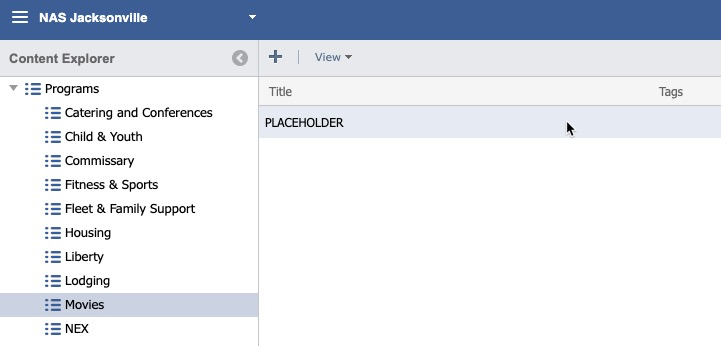
In this example, we are selecting Programs, then Movies.
Select the Create icon.


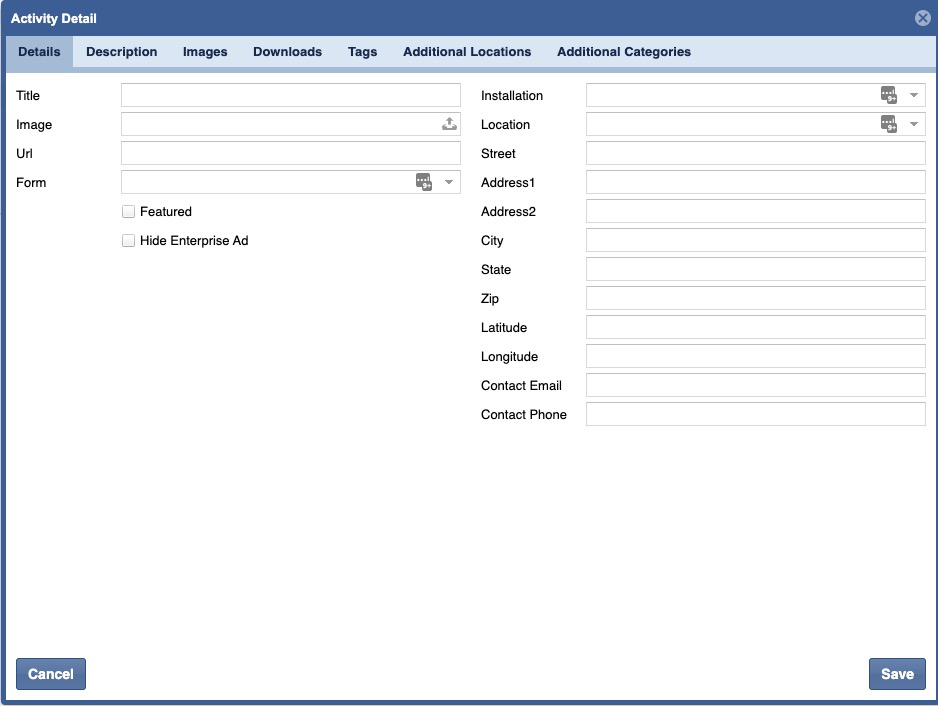
This will bring up the Content Details, these sub-panels vary based on the content type selected.

| Info |
|---|
Please see the specific sections for details on the sub-panels and their attributes |
Enter in all information and continue adding additional information by clicking on other tabs (Such as, Description, Mobile Description, Hours, Downloads, Images, Tags, and Groups). Using the arrows to navigate the extensive tab listings.


Click Save.


| Anchor | ||||
|---|---|---|---|---|
|
Modify Content
Select a content category, then content sub-type
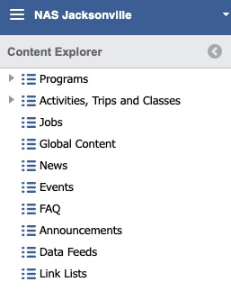
In this example, we are selecting Programs, then Movies.
Double click the Line Item.

Modify the content.
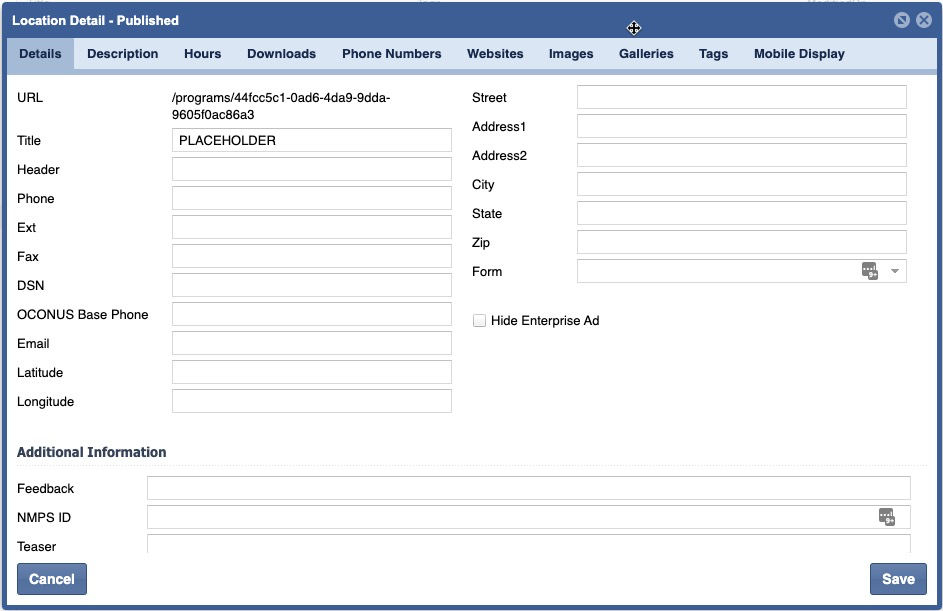
Click Save.

| Anchor | ||||
|---|---|---|---|---|
|
Deleting Content
Select a content category, then content sub-type
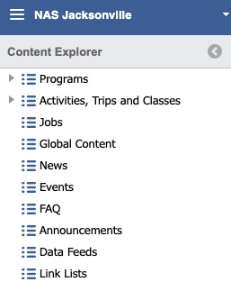

In this example, we are selecting Programs, then Movies.
Select the Line Item.

On a keyboard, hit the Delete key.
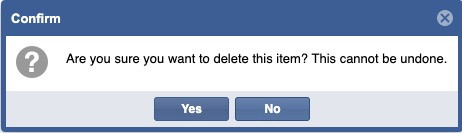
A confirmation message will appear, click Yes.

Click Yes.