Page History
| Warning | ||
|---|---|---|
| ||
The Activity Attendance screen will page will ONLY display those Activities that are linked to an Activity Category with the Attendance Type marked Scheduled. |
...
Note: The appearance of the Activity will be based on the Time Zone linked to the Installation.
 Step-by-step Guide to complete an Activity Attendance record
- Open the workspace selector by clicking on the three line menu icon in the upper left corner of the system.

- Select Attendance.

Double click an Activity or click the "Pencil" icon on the Activity you wish to enter in attendance.

- Enter in the Active Duty and all Others countsOther count values.

- Change the Instructor if needed. This field will default to the instructor linked on the session occurrence.

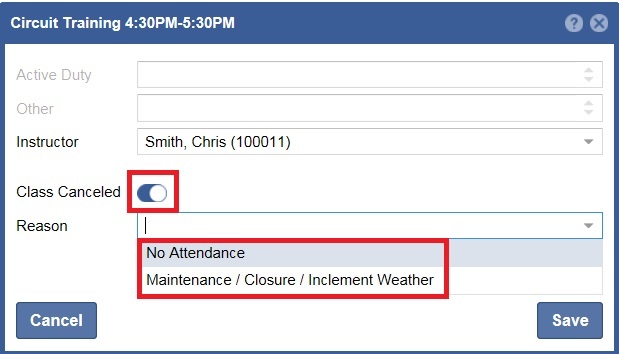
- If the class was cancelled then mark the toggle "ON" and select a reason.
Otherwise, click the "Save" button when complete.