Page History
...
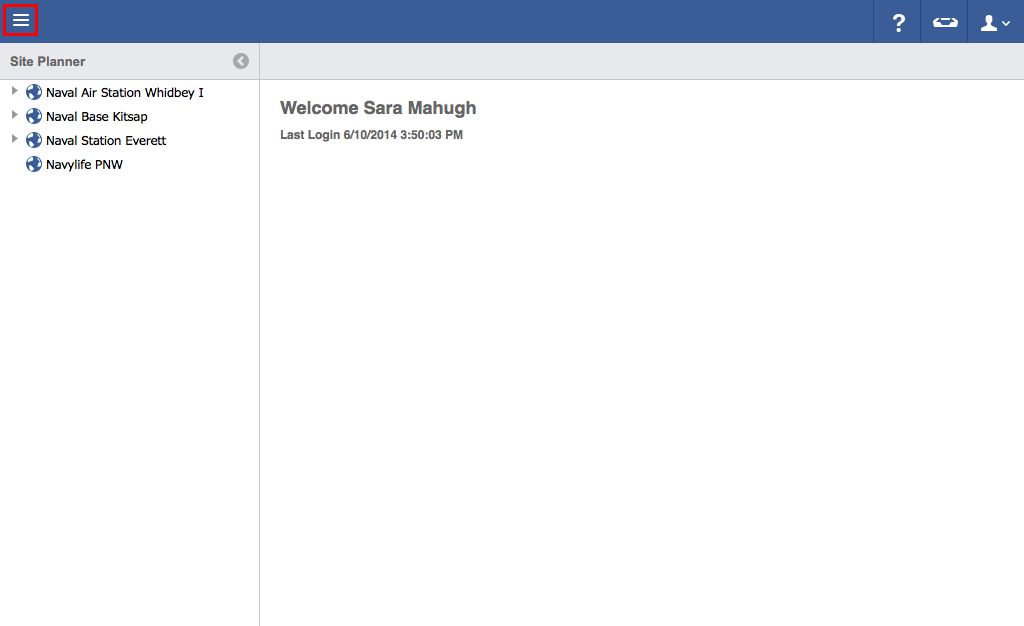
- Click on the menu icon in the top left header area.
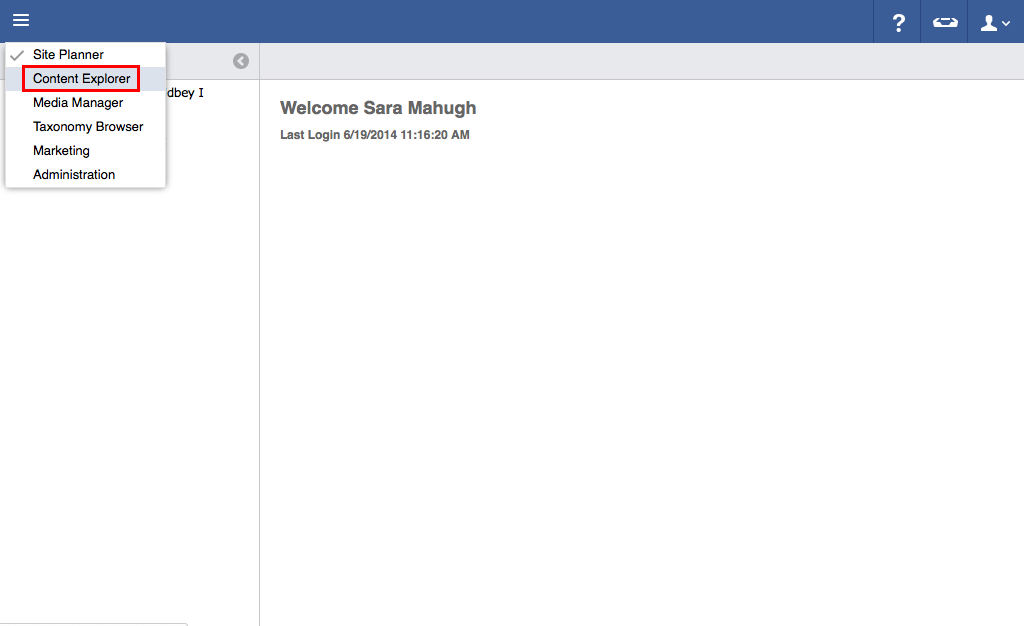
- Click "Content Explorer".
- Click "Activities, Trips and Classes ".
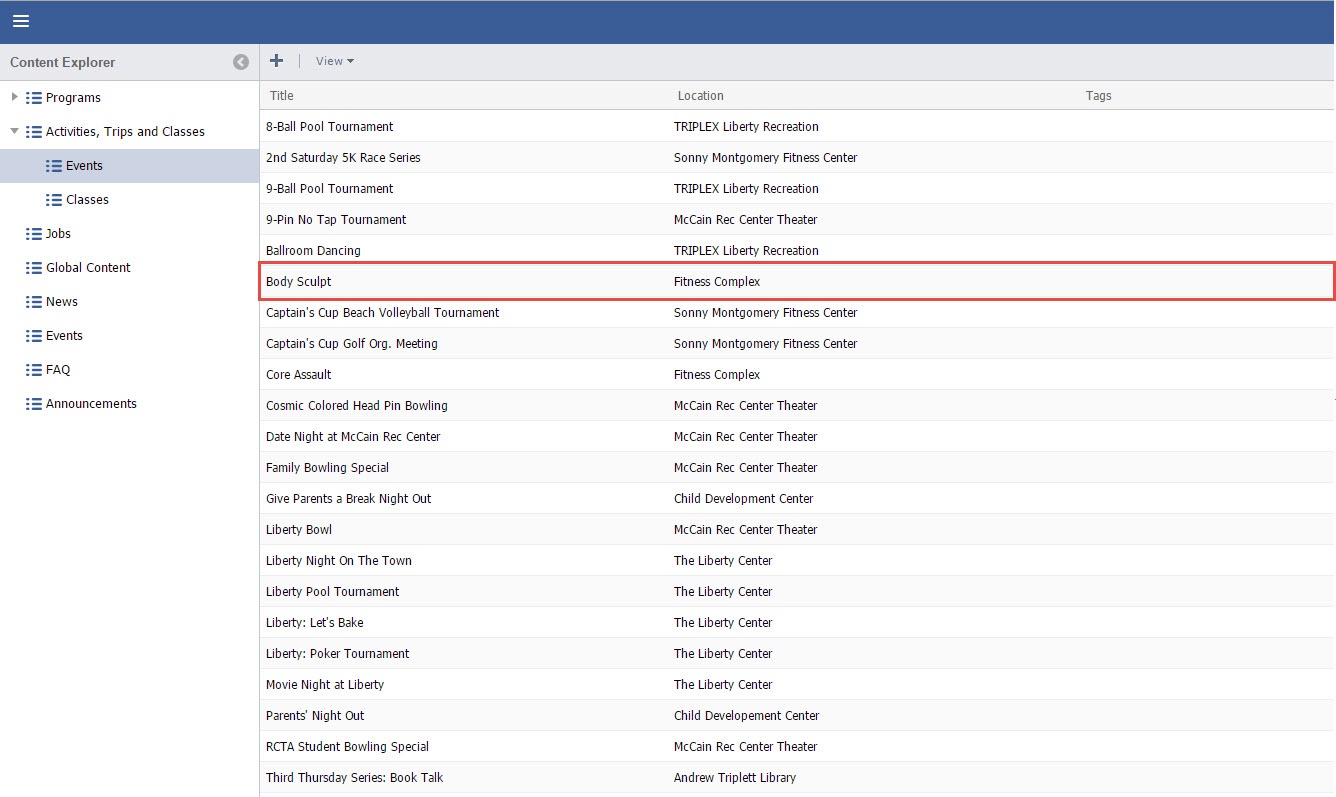
- Click the "Arrow" to expand the sub-menus
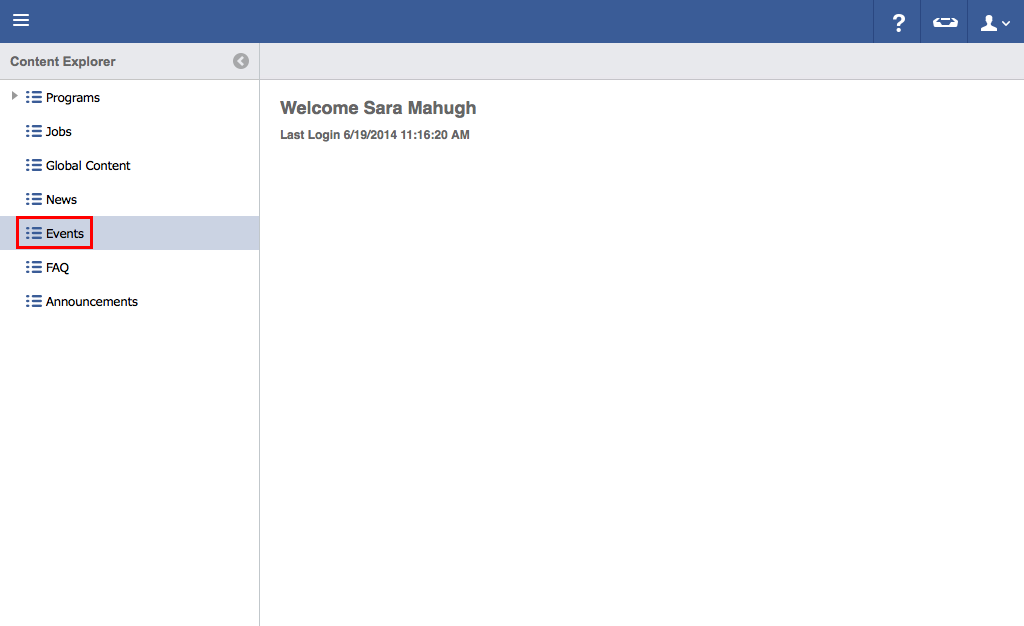
- Select the "Events" or "Classes".
- For Parent Classes or Events, click once to highlight the information to be deleted. For Child Events and Activities, continue to Child Events
- Hit the ".
Delete" button on keyboard. Note: For Mac users- Hold down "Function" and "Delete".
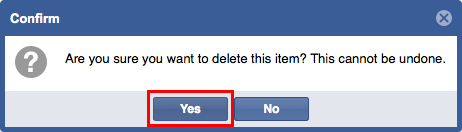
 - Click "Yes" to delete.
Anchor ChildEvents ChildEvents
- For Child Classes or Events, Double Click the information that houses the Child Events or Activities.
- Click once and Click once to highlight the information to be deleted.
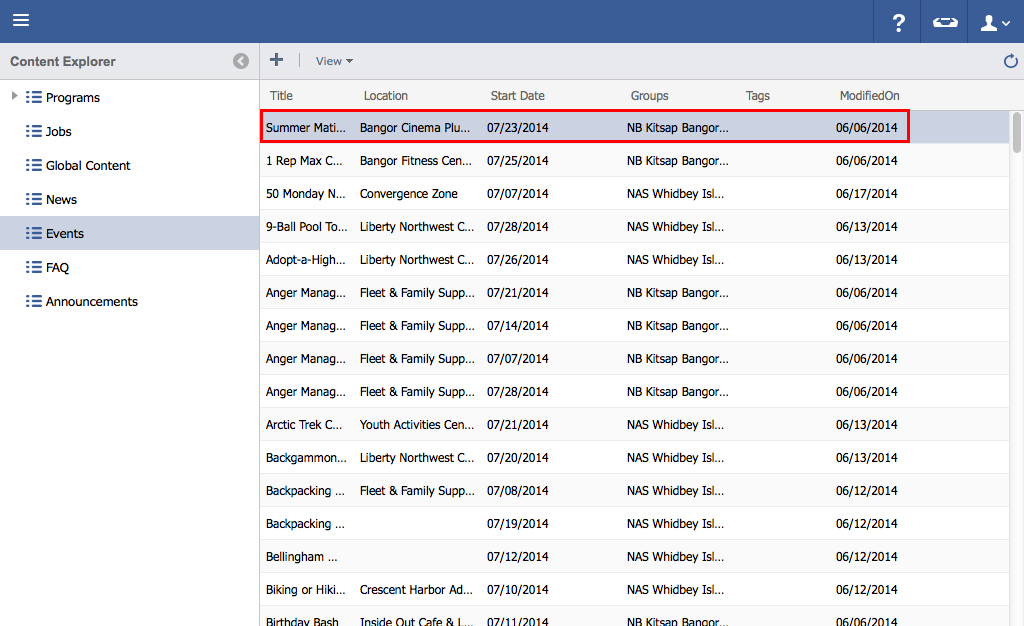

- Hit the "Delete" button on keyboard. Note: For Mac users- Hold down "Function" and "Delete".
- Click "Yes" to delete.