Page History
...
Activities, Classes and Trips
| Note |
|---|
Note: The following steps are for users that use the Activity, Classes and Trip logic, not those using the Event logic. |
Step-by-step guide
- Click on the menu icon in the top left header area.

- Click "Content Explorer".

- Click "Activities, Trips and Classes ".

- Click the "Arrow" to expand the sub-menus

- Click Event or Class, depending on your need.

- "Plus" icon.
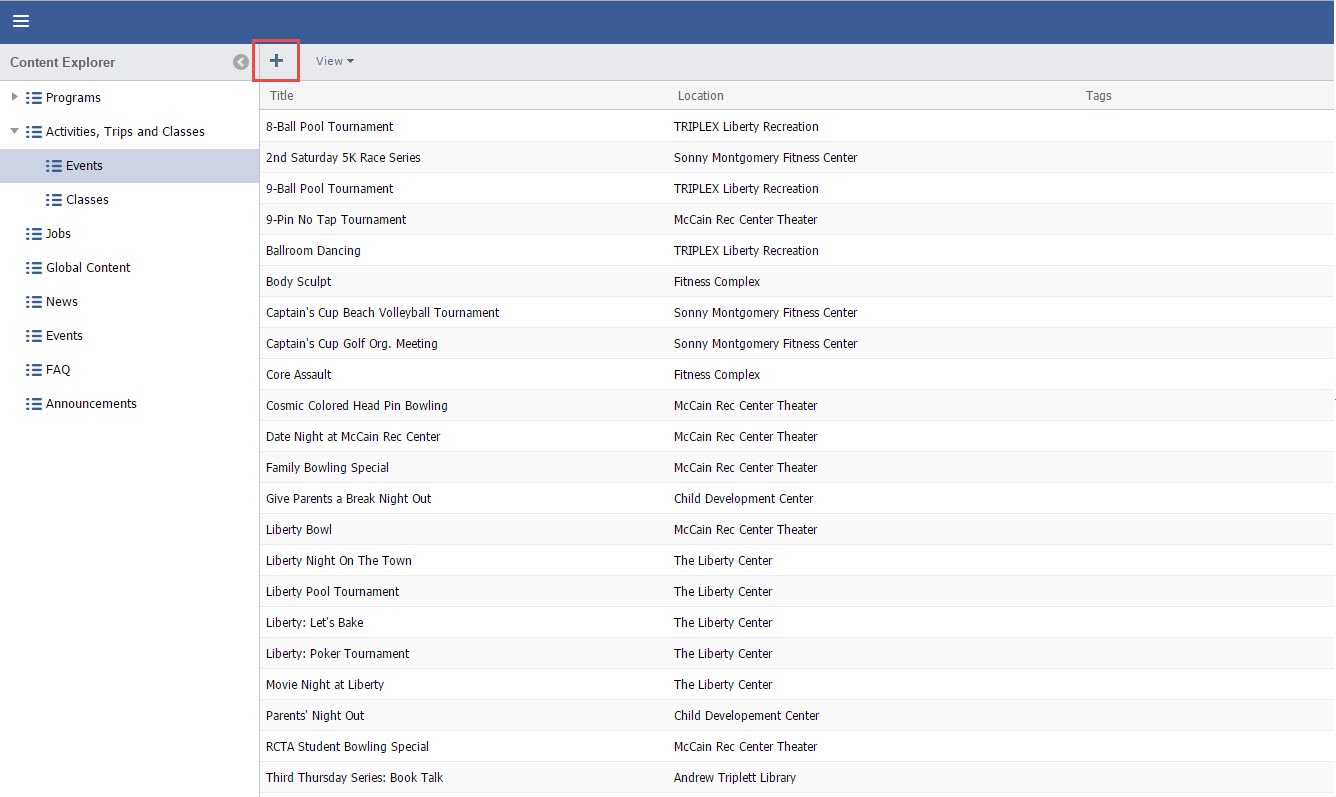
- Add event details.

- Click the Description and enter Class/Event Description. For detailed information on how to format see Rich Text Editor, in your user guide.

a. Click the "Plus" sign to add an image.
b. To add a URL link to an image, simply click in the "Link" space, and enter the Full URL.
- Click the "Plus" sign to add Downloads, such as Waivers or Event Flyer.

Add Tags by drilling down to the appropriate Tag and clicking the "Arrow".


- Add any Additional Location

Grant Access to the appropriate Groups.

If Multiple groups are selected, "Is Primary" should be selected for the Primary Group.
Note title Within the Web Page Note: If an item has multiple Groups selected, the URL generated will use this Primary group instead of randomly selecting a group.

Click "Save".

...