Page History
...
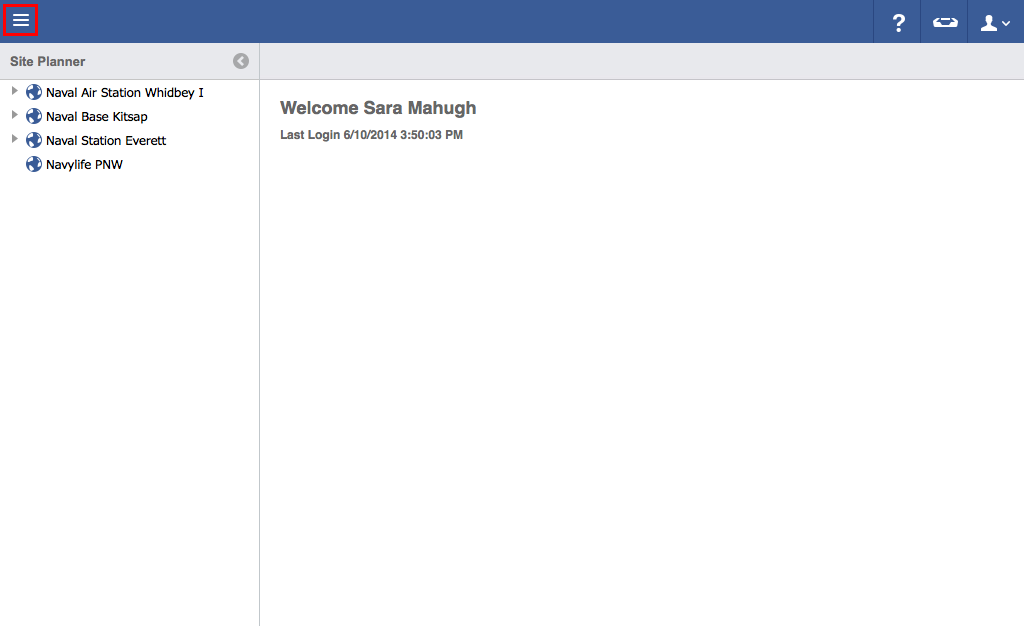
- Click on the menu icon in the top left header area.
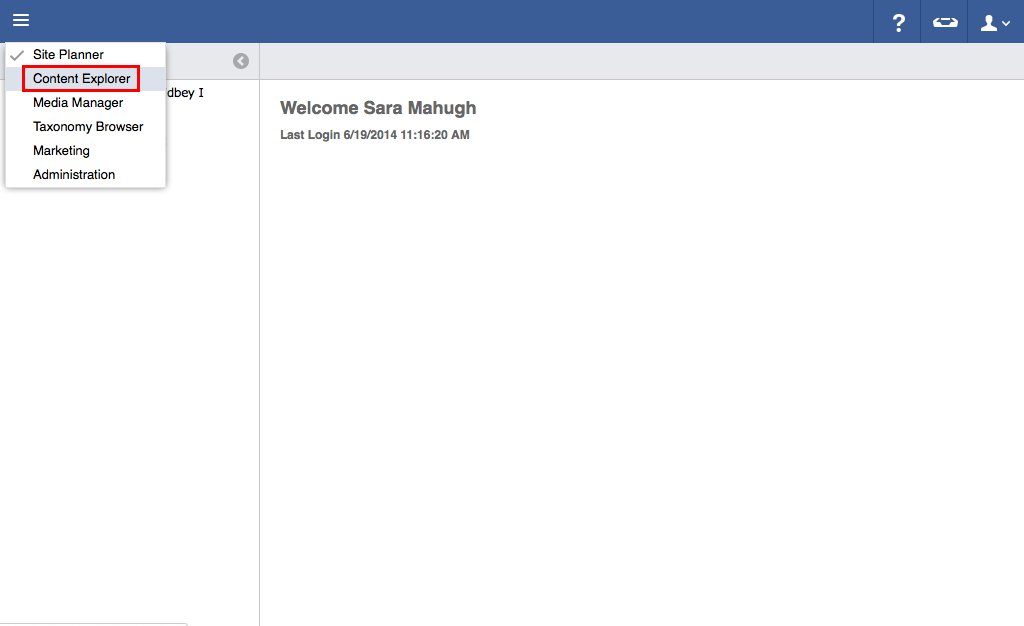
- Click "Content Explorer".
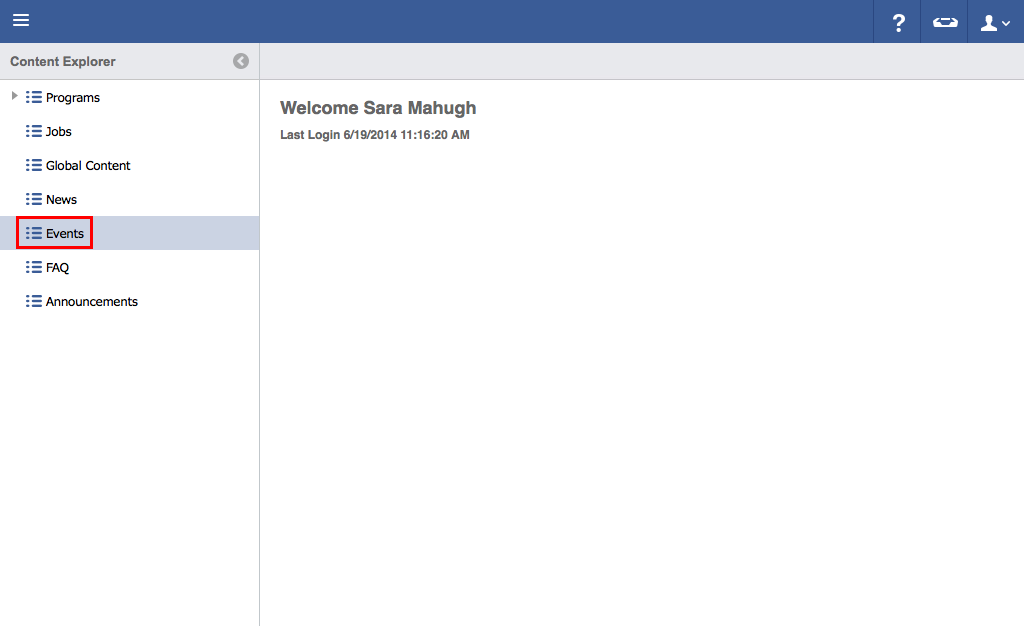
- Click "Events".
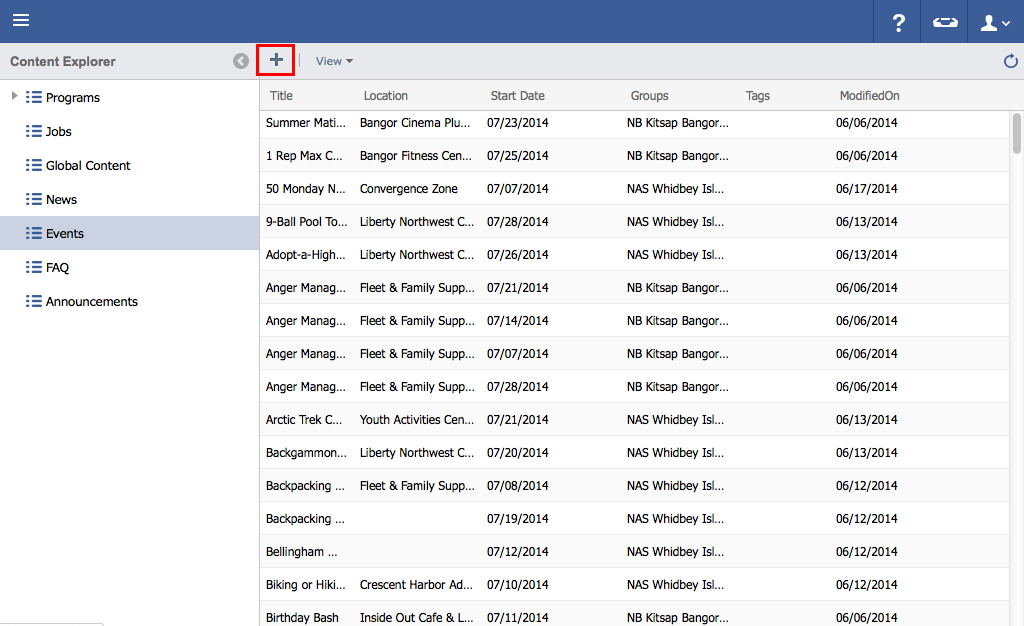
- Click the "Plus" icon.
- Add event details.

- In the Date & Time tab, recurrence can be setup in 3 ways, Single Event, Weekly and Monthly.

- Selecting Weekly will allow the Event to repeat on the specified days until the End Date has been reached.

- Selecting Monthly will allow an Event to repeat with granular controls like a certain day of every month, or a certain occurrence of a day of the week, both with abilities to skip months (First Thursday of every 3 months, for example)

- Continue adding additional information by clicking on other tabs (Such as Description, Images, Downloads, Tags, and Groups).
- Click "Save".

| Anchor | ||||
|---|---|---|---|---|
|
Activities, Classes and Trips
...
Note: The following steps are for users that use the Activity, Classes and Trip logic, not those using the Event logic.
...
- Click on the menu icon in the top left header area.

- Click "Content Explorer".

- Click "Activities, Trips and Classes ".

- Click the "Arrow" to expand the sub-menus

- Click Event or Class, depending on your need.

- "Plus" icon.
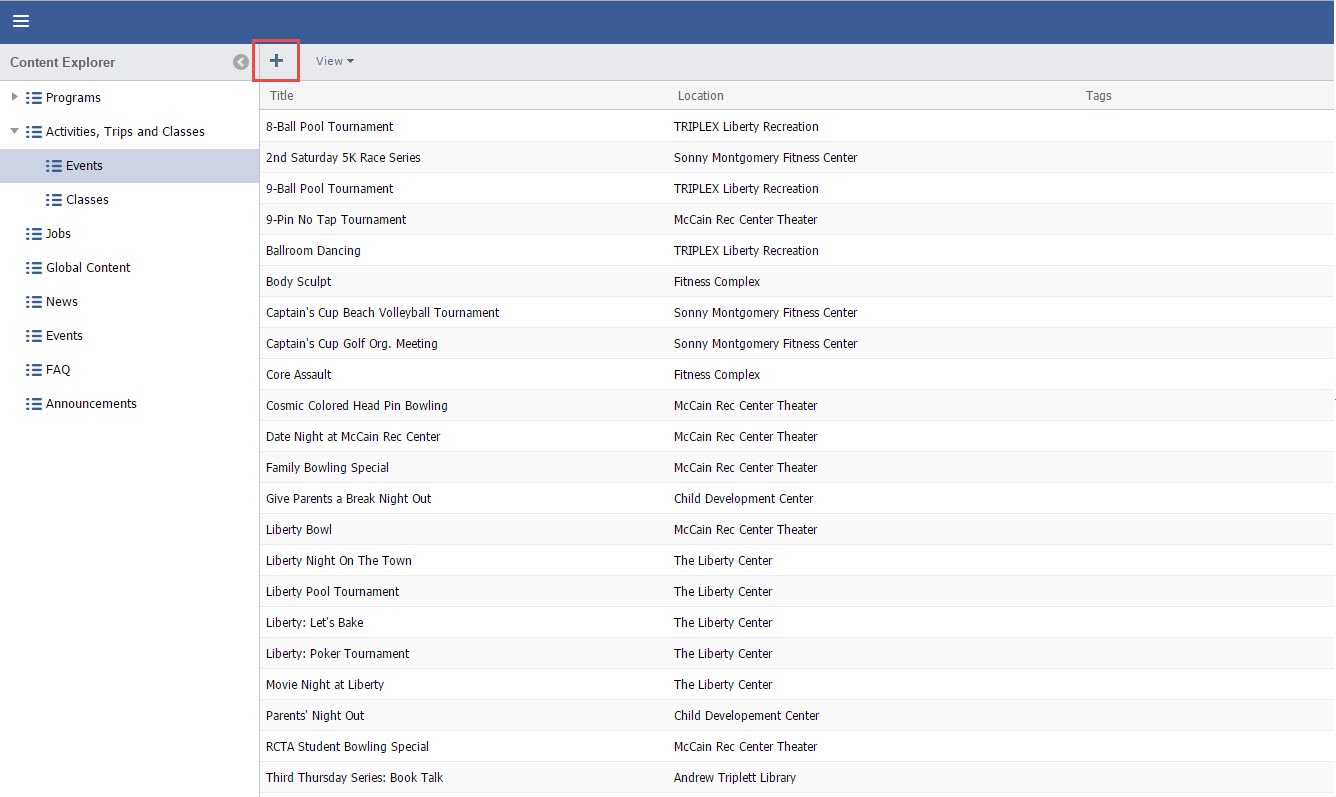
- Add event details.

- Click the Description and enter Class/Event Description. For detailed information on how to format see Rich Text Editor, in your user guide.

a. Click the "Plus" sign to add an image.
b. To add a URL link to an image, simply click in the "Link" space, and enter the Full URL.
- Click the "Plus" sign to add Downloads, such as Waivers or Event Flyer.

Add Tags by drilling down to the appropriate Tag and clicking the "Arrow".



- Add any Additional Location

- Grant Access to the appropriate Groups.

If Multiple groups are selected, "Is Primary" should be selected for the Primary Group.
Note title Within the Web Page Note: If an item has multiple Groups selected, the URL generated will use this Primary group instead of randomly selecting a group.

- In the Date & Time tab, recurrence can be setup in 3 ways, Single Event, Weekly and Monthly.
- Selecting Weekly will allow the Event to repeat on the specified days until the End Date has been reached.
- Selecting Monthly will allow an Event to repeat with granular controls like a certain day of every month, or a certain occurrence of a day of the week, both with abilities to skip months (First Thursday of every 3 months, for example)
- Continue adding additional information by clicking on other tabs (Such as Description, Images, Downloads, Tags, and Groups).
- Click "Save".